Managing Your Trust Center Knowledge Base
How to select which documents power your Trust Center Knowledge Base, review Approved Answers, and enable the visitor-facing AI chat widget.
Overview
The Knowledge Base is the set of documents and approved responses that Concord's AI references to answer questions — both the visitor-facing chat widget on your Trust Center and the AI auto-fill used for security questionnaires and RFPs. The more complete your Knowledge Base, the more accurate and specific the AI's answers are.
- In the Concord Admin UI, go to Trust → Knowledge Base.
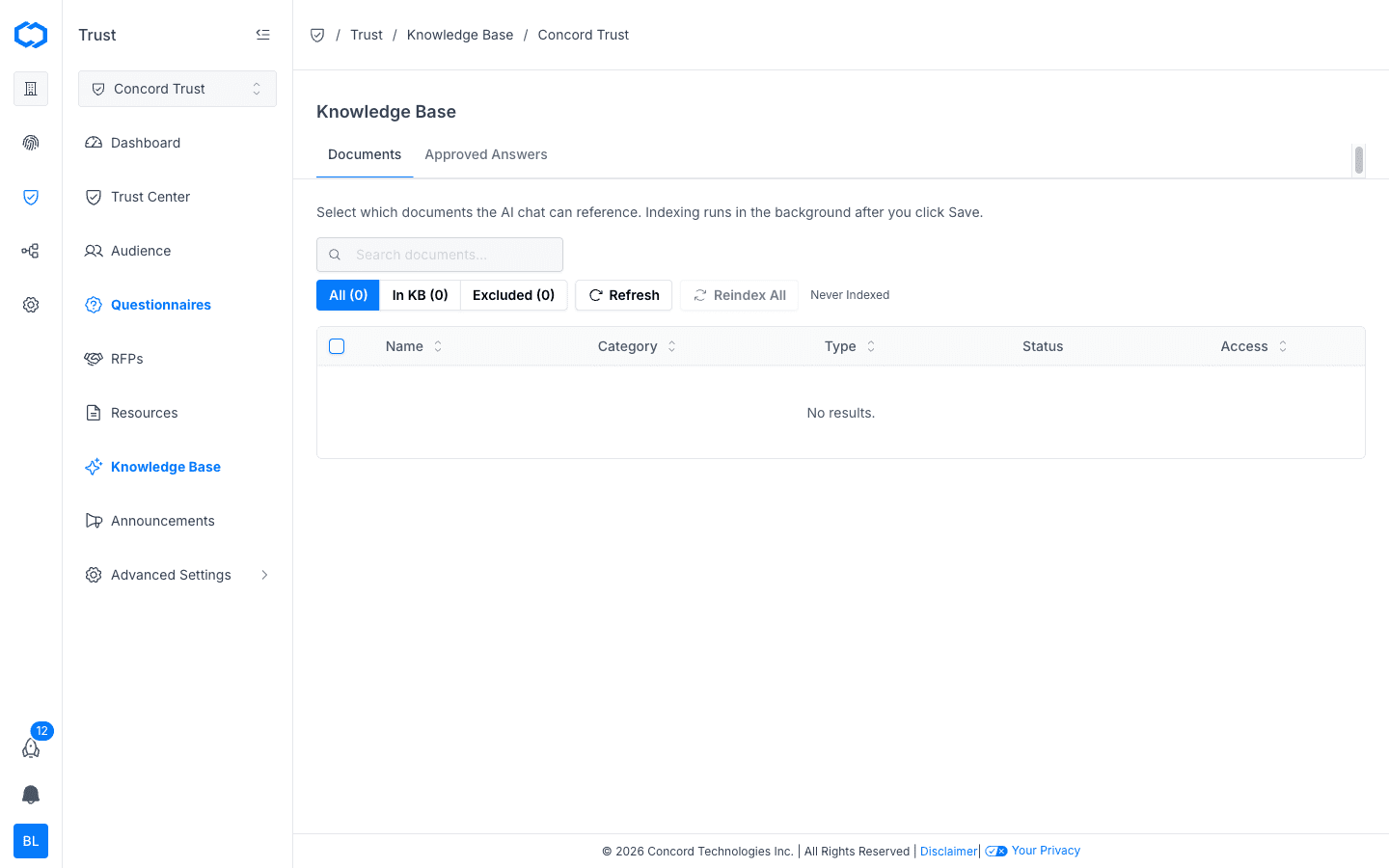
The Knowledge Base has two tabs: Documents and Approved Answers.
Adding Documents to the Knowledge Base
The Documents tab controls which documents from your Resources library the AI is allowed to reference.
- Go to the Documents tab.
- Use the search bar to find a specific document, or browse the full list.
- Use the All, In KB, and Excluded filters to see which documents are currently included in or excluded from the Knowledge Base.
- Select the checkbox next to each document you want the AI to reference.
- Click Save.
Indexing runs in the background after you save — newly added documents won't be searchable by the AI immediately. A document's row shows its indexing status (for example, Never Indexed before its first save).
Refreshing and Reindexing
- Click Refresh to update the table with the latest indexing status for your documents.
- Click Reindex All to force Concord to re-process every document currently in the Knowledge Base. Use this after making significant edits to several documents at once, or if you suspect the AI is referencing outdated content.
Approved Answers
The Approved Answers tab shows the question-and-answer pairs that have been added to your Knowledge Base from completed work elsewhere in Concord Trust. When you approve a completed questionnaire or RFP, its responses are automatically added here and become available as source material for future AI-generated answers.
This creates a compounding effect: the more questionnaires and RFPs you complete and approve, the stronger your Knowledge Base gets, and the less manual editing future AI-drafted answers need.
Enabling the Visitor-Facing AI Chat
Documents and Approved Answers only become useful to visitors once you turn on the AI chat widget on your public Trust Center.
- Go to Trust → Trust Center and select the Chat tab.
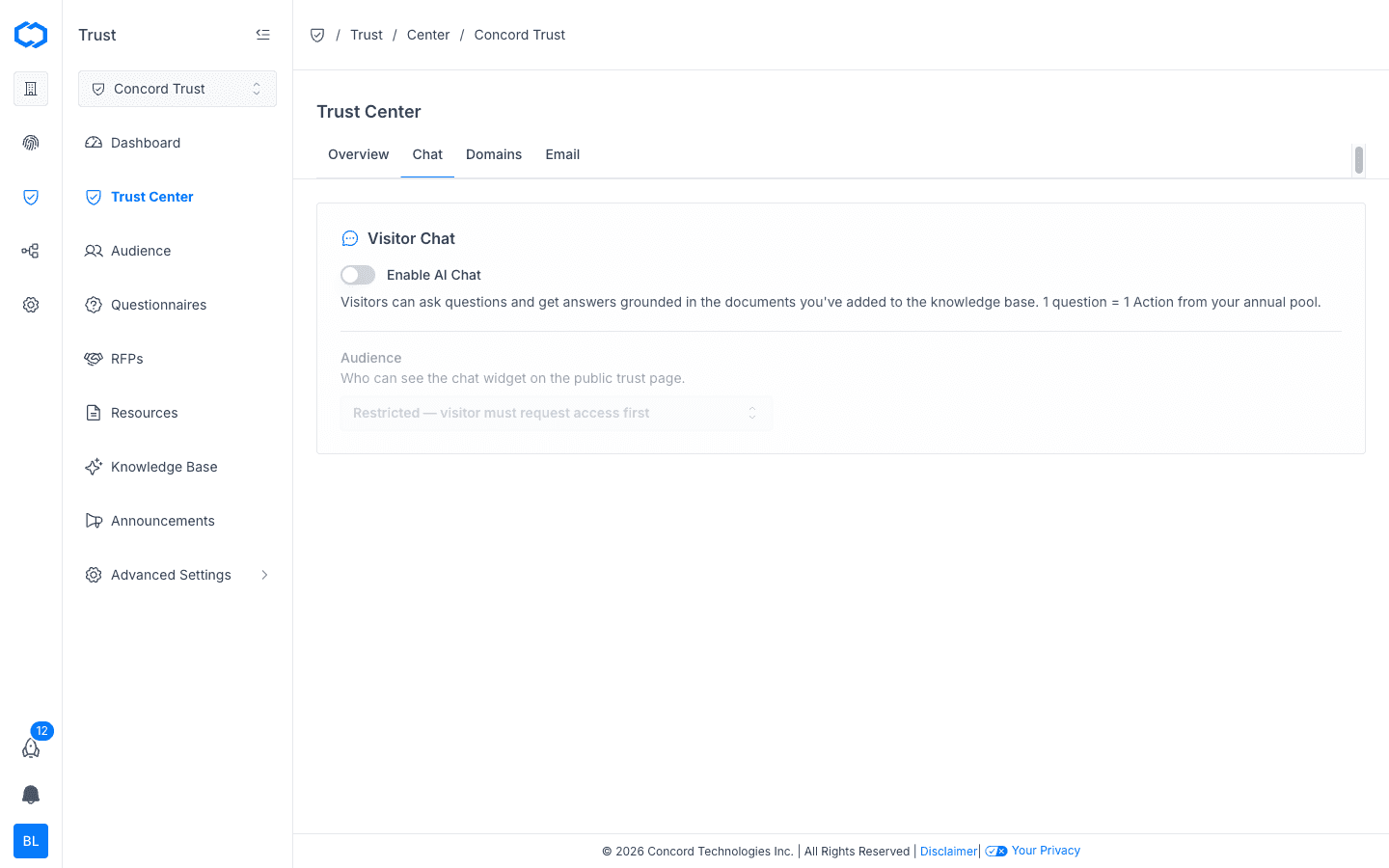
- Toggle on Enable AI Chat under Visitor Chat.
- Set the Audience for the chat widget — for example, restrict it so a visitor must request access before they can use it, matching your other gated access settings.
Once enabled, visitors can ask questions on your Trust Center and receive answers grounded in your Knowledge Base. Each question a visitor asks counts as one Action against your annual Action pool.
Measuring Knowledge Base Usage
The Knowledge & Engagement section of the Trust Dashboard tracks how visitors and the AI chat agent use your Knowledge Base, including AI answers and Q&A card interactions, and which documents are downloaded most often. See Trust Center Analytics for a full breakdown.
Related Articles
Managing FAQs
How to add, edit, and manage FAQ documents in the Data Hub for your Concord Trust Center, including individual FAQs and bulk import from a spreadsheet.
Creating Trust Center Announcements
How to create, publish, and track announcements on your Concord Trust Center, including compliance attestations, vulnerability disclosures, and subscriber notifications.