Managing Your Trust Center Resources
How to select which documents from your central document library are included on a specific Trust Center, and quick-edit their type and access level.
Overview
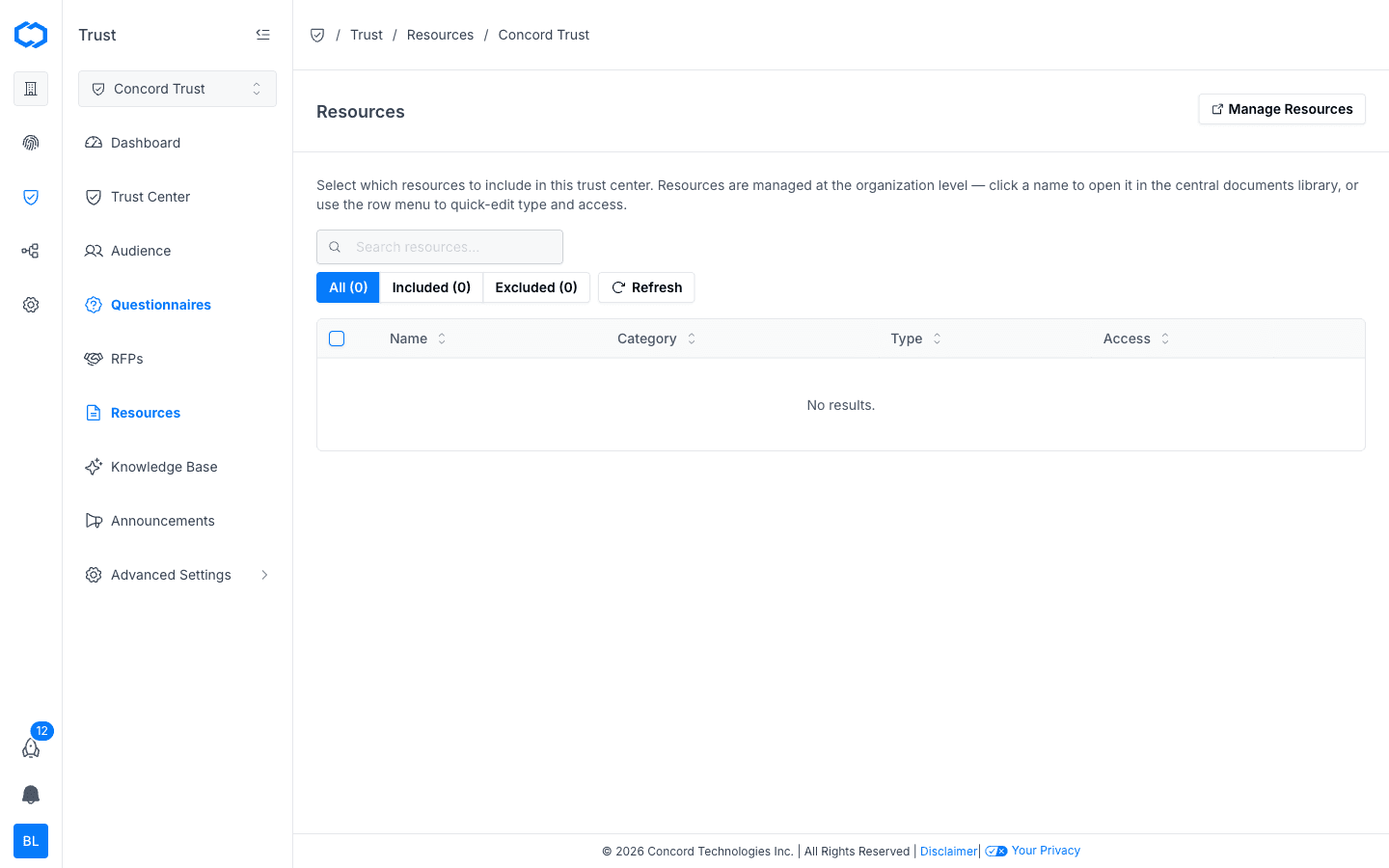
The Resources page controls which documents from your organization's central document library appear on this specific Trust Center. Documents themselves are managed at the organization level — in the same shared library covered in Adding & Managing Documents — but whether a given document is included or excluded from a particular Trust Center is set here.
This matters most if your organization runs multiple Trust Centers (for example, separate centers for different products or business units) and needs different documents visible on each one.
- In the Concord Admin UI, go to Trust → Resources.
Viewing and Filtering Resources
The Resources table shows documents from your central library with the following columns:
| Column | Description |
|---|---|
| Name | The document name. |
| Category | The document's category. |
| Type | The document type (Statement, FAQ, Link, Report, or Policy). |
| Access | Who can access the document when it's shown on this Trust Center. |
Use the All, Included, and Excluded filters to see which documents currently appear on this Trust Center. Use the search bar to find a specific document by name, and click Refresh to pull the latest list from your central library.
Including or Excluding a Resource
- Go to Trust → Resources.
- Select the checkbox next to each document you want to include on this Trust Center.
- Click Save.
Excluding a document removes it from this Trust Center without deleting it from your central library or affecting other Trust Centers it may be included on.
Quick-Editing Type & Access
Use the row menu on a resource to quickly change its type or access level without leaving the Resources page.
- Find the resource in the table.
- Open its row menu.
- Update the Type or Access level and save your changes.
For any other edits — updating the document's actual content, name, description, or archiving and deleting it — click the document's name to open it in the central documents library. See Editing a Document for the full editor walkthrough, or click Manage Resources in the upper right corner to jump straight there.
Related Articles
Auditor Access
Set up an audit, invite your external auditors with scoped, time-boxed access, and work through their reviews and evidence requests, without adding them as full team members.
Adding & Managing Documents
How to add and manage documents in the Data Hub for use in your Concord Trust Center, including statements, FAQs, links, reports, and policies.