RFP Automation Overview
Overview of RFP and RFX automation in Concord Trust: how to process incoming RFPs, generate AI-powered responses, and manage the review workflow.
Overview
Concord Trust includes a dedicated workspace for responding to Requests for Proposal (RFPs), Requests for Information (RFIs), and other RFX documents. The RFP workflow follows the same three-step process as questionnaires (Upload, Generate, Review & Export) but the AI uses a sales-oriented voice that leads with value to the prospect, rather than the security-audit voice used for questionnaires.
Navigate to Trust → RFPs to access the RFP workspace.
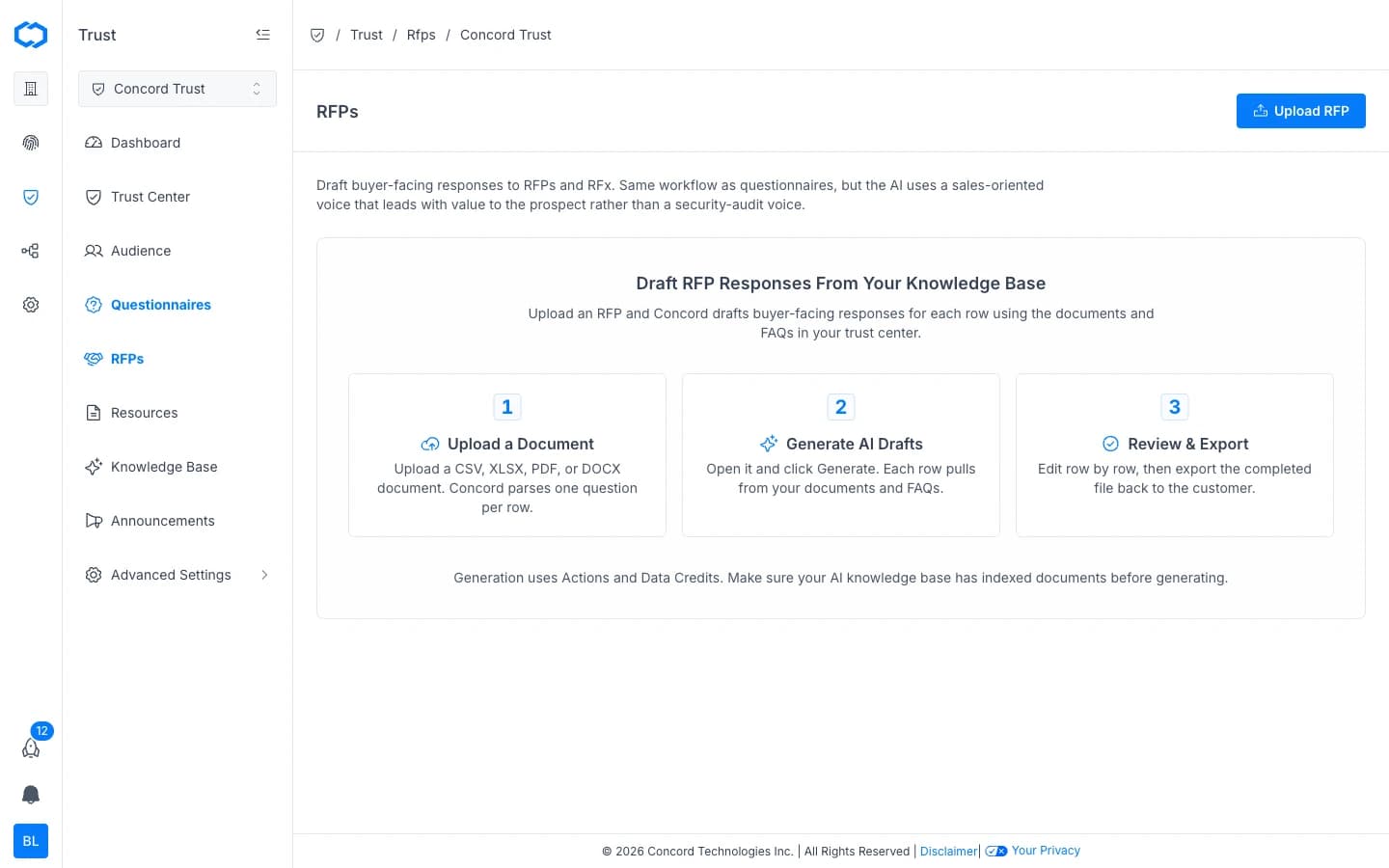
How RFP Automation Works
The RFP workflow follows three stages:
1. Upload and Parse
Upload an RFP document and Concord parses it into individual requirements, questions, and sections. Supported formats include XLSX, CSV, PDF, and DOCX.
- Navigate to Trust → RFPs.
- Click Upload RFP.
- Upload the RFP document. Supported formats: CSV, XLSX, PDF, or DOCX. Concord parses one question per row.
2. AI-Powered Response Generation
Once the RFP is uploaded, generate AI draft responses:
- Open the RFP from Trust → RFPs.
- Click Generate. Each row pulls from your documents and FAQs in the Knowledge Base.
- The AI generates a buyer-facing draft response for each requirement, citing the source documents it referenced.
The AI uses the same Knowledge Base and Data Hub as questionnaire automation. Prior RFP responses that you approve also feed back into the Knowledge Base, improving accuracy for future RFPs.
3. Review and Finalize
Review each AI-generated response before submitting:
- High confidence responses typically need a quick review for accuracy and tone.
- Medium confidence responses may need supplemental detail.
- Low confidence responses should be written or substantially revised manually.
Click into any response to edit it row by row.
RFP Statuses
| Status | Meaning |
|---|---|
| New | Uploaded but response work has not started. |
| In Progress | AI auto-fill has run or manual responses have begun. |
| In Review | All responses are drafted and awaiting final review. |
| Completed | Finalized and ready to send to the requester. |
| Archived | Completed and moved out of the active queue. |
Exporting Completed RFPs
Once all responses are finalized:
- Click Complete to mark the RFP as done.
- Click Export to download the completed RFP in its original format or as a PDF.
Differences from Questionnaire Automation
While RFPs and questionnaires share the same AI engine, Knowledge Base, and three-step workflow, the key difference is voice:
| Questionnaires | RFPs | |
|---|---|---|
| Navigation | Trust → Questionnaires | Trust → RFPs |
| AI voice | Security-audit voice (factual, compliance-focused) | Sales-oriented voice (leads with value to the prospect) |
| Supported formats | CSV, XLSX, PDF, DOCX | CSV, XLSX, PDF, DOCX |
Actions and Data Credits
Generation uses Actions and Data Credits. Actions cover orchestration and are included with your plan. Data Credits cover AI inference costs and are purchased separately. See Actions and Data Credits for details.
Building Your Knowledge Base
The same practices that improve questionnaire AI accuracy apply to RFPs:
- Keep documents in the Data Hub current. See Adding & Managing Documents.
- Approve completed RFPs so their responses feed back into the Knowledge Base.
- Maintain FAQs for common security and compliance questions. See Managing FAQs.
- Connect Concord Privacy so policies sync automatically through the Data Hub.
Related Articles
Managing Questionnaires
How to receive, manage, and respond to security questionnaires in Concord Trust, including manual intake, reviewing responses, editing answers, and submitting completed questionnaires.
Controls and Evidence
Add security and privacy controls, assign owners, and prove them with evidence that stays current, the foundation of a compliance program in Concord Trust.