Managing Questionnaires
How to receive, manage, and respond to security questionnaires in Concord Trust, including manual intake, reviewing responses, editing answers, and submitting completed questionnaires.
Overview
The Trust → Questionnaires workspace is where you manage the full lifecycle of incoming security questionnaires. This guide covers the manual workflow: receiving questionnaires, responding to questions, reviewing answers, and sending completed responses back to the requester.
For AI-powered auto-fill, see AI Questionnaire Automation.
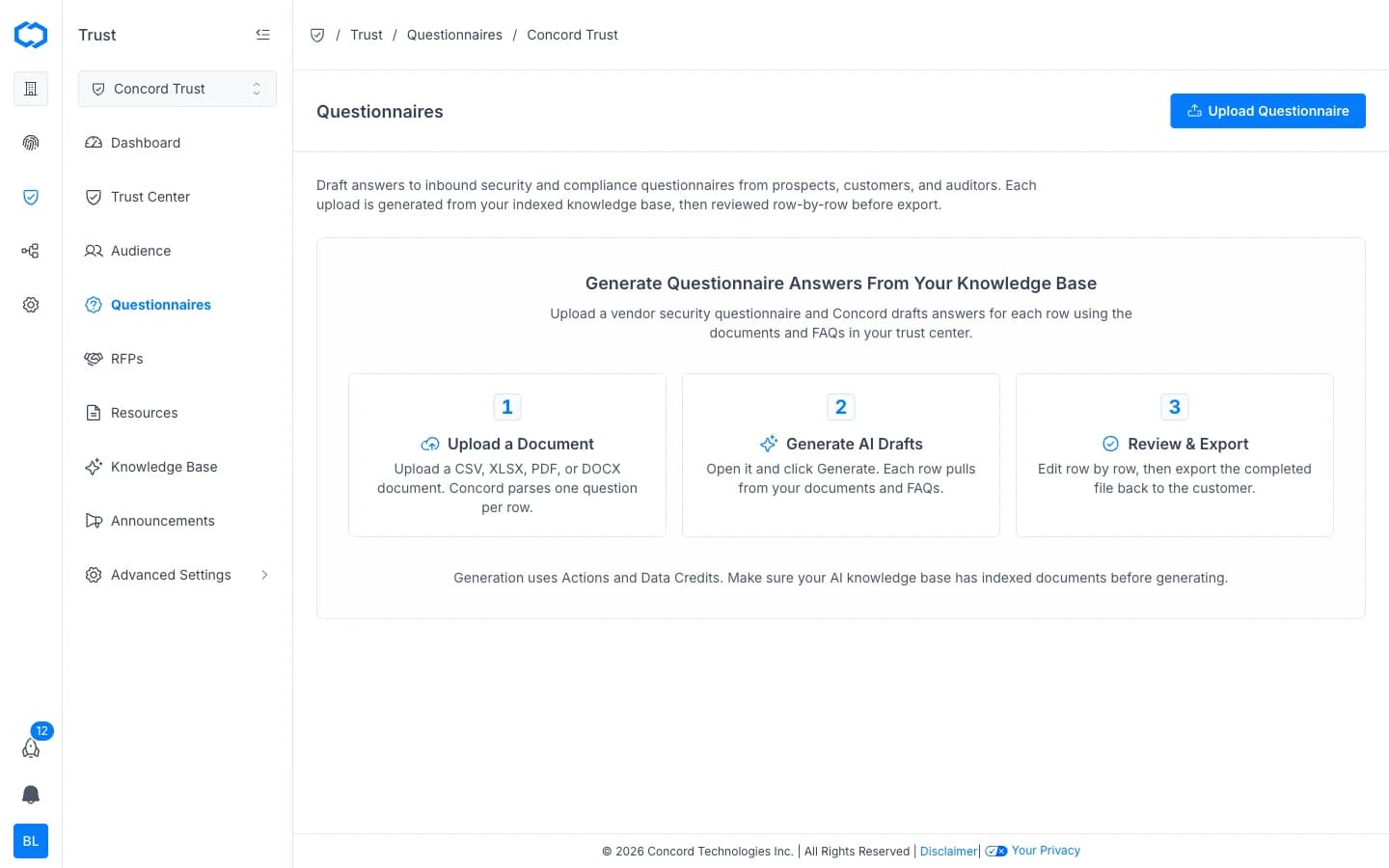
Receiving a Questionnaire
Questionnaires can arrive in two ways:
- Via your Trust Center: a prospect or customer submits a questionnaire through your published Trust Center.
- Manual upload: your team uploads a questionnaire file directly.
Uploading a Questionnaire Manually
- Navigate to Trust → Questionnaires.
- Click Upload Questionnaire.
- Upload the questionnaire file. Supported formats: CSV, XLSX, PDF, or DOCX. Concord parses one question per row.
The questionnaire appears in your workspace ready for AI draft generation.
Viewing Your Questionnaire Inbox
The questionnaire inbox at Trust → Questionnaires displays all questionnaires with the following information:
- Requester: who sent the questionnaire.
- Company: the requesting organization.
- Status: current stage (New, In Progress, In Review, Completed, Archived).
- Date Received: when the questionnaire was submitted or uploaded.
- Questions: total number of questions.
- Answered: number of questions with responses.
Use the status tabs to filter between active and completed questionnaires.
Responding to Questions
- Click on a questionnaire to open it.
- Click Generate to have the AI draft answers for each row using the documents and FAQs in your Knowledge Base.
- Each question is displayed with a response field. You can also edit any row manually.
- Review each response row by row.
Reviewing and Editing Responses
Before exporting, review each response for accuracy:
- Open the questionnaire and review responses row by row.
- Edit any response by clicking into the answer field.
- When all responses are reviewed, the questionnaire is ready to export.
Submitting a Completed Questionnaire
Once all responses are finalized, export the completed questionnaire file and send it back to the requester.
Archiving Questionnaires
To archive a completed questionnaire:
- Open the questionnaire or select it from the list.
- Click Archive.
Archived questionnaires remain in the system and their responses continue to feed the Knowledge Base for future AI auto-fill.
Related Articles
AI Questionnaire Automation
How Concord Trust uses AI to auto-fill security questionnaire responses by referencing your Knowledge Base and Data Hub, including how answers are generated, reviewed, and when AI credits are consumed.
RFP Automation Overview
Overview of RFP and RFX automation in Concord Trust: how to process incoming RFPs, generate AI-powered responses, and manage the review workflow.