Trust Center Branding & Customization
How to customize the content and appearance of your Concord Trust Center, including hero text, logo, colors, and layout, so it matches your organization's brand.
Overview
Your Trust Center is a public-facing page that prospects, customers, and partners visit to evaluate your security posture. Concord lets you customize both the content and appearance of your Trust Center so it looks and reads like a natural extension of your website, not a third-party tool.
The Trust Center editor has three tabs: Content, Design, and Chat. This article covers Content and Design. For enabling and configuring the visitor-facing AI chat widget, see Managing Your Trust Center Knowledge Base.
Accessing the Trust Center Editor
- In the Concord Admin UI, go to Trust → Trust Center.
- Select the Overview tab.
- Click Edit to open the Trust Center editor.
Content
The Content tab controls the text, links, and sections shown on your Trust Center.
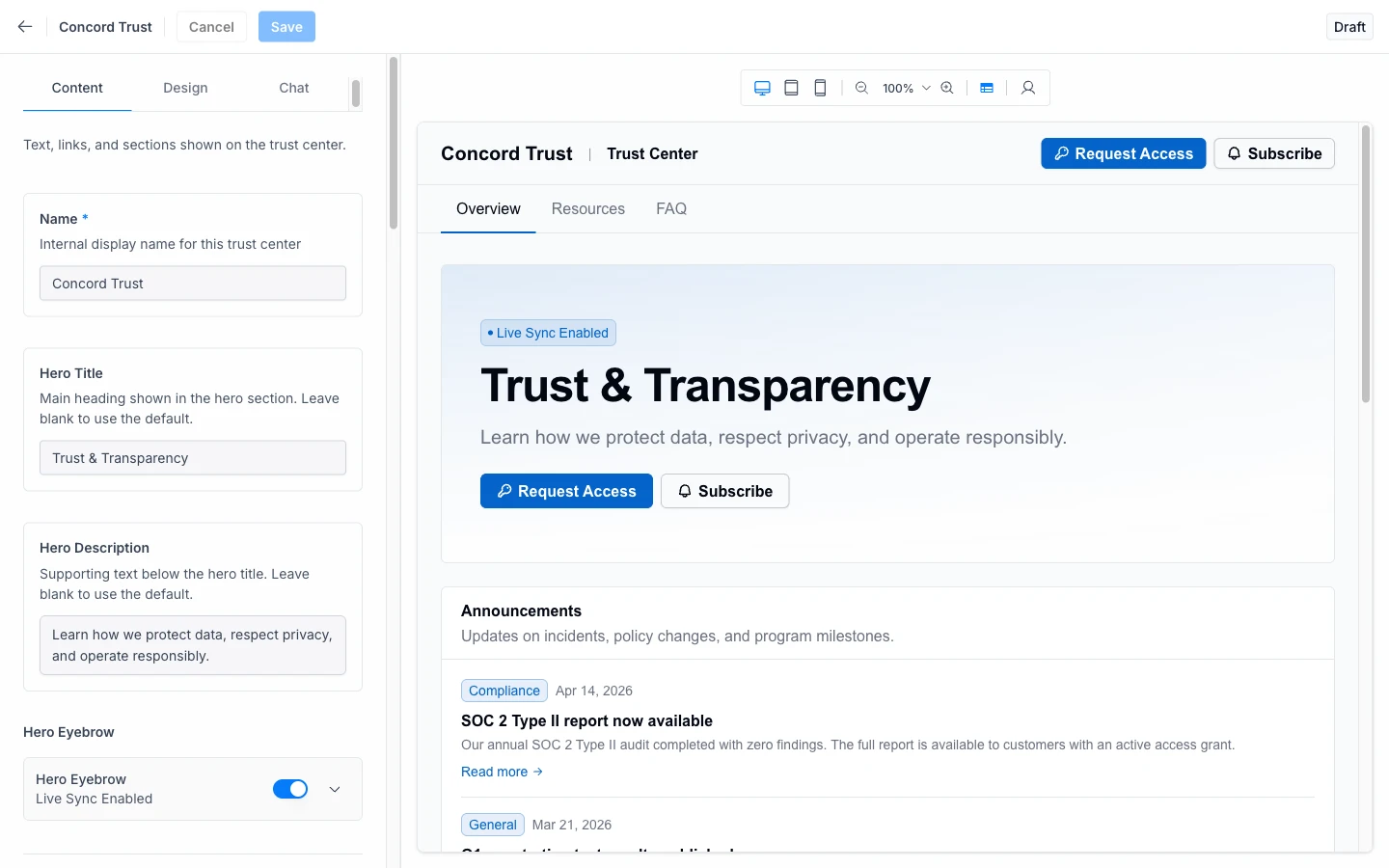
- Name: the internal display name for this Trust Center. This is not shown to visitors.
- Hero Title: the main heading shown in the hero section at the top of your Trust Center. Leave blank to use the default.
- Hero Description: the supporting text shown below the hero title. Leave blank to use the default.
- Hero Eyebrow: a small label shown above the hero title (for example, a "Live Sync Enabled" badge). Toggle it on or off.
- In the Trust Center editor, select the Content tab.
- Update the fields you want to change. The preview panel on the right updates as you type.
- Click Save.
Saving keeps your changes as a Draft. Publish your Trust Center to make them visible to visitors — see Getting Started with Concord Trust.
Design
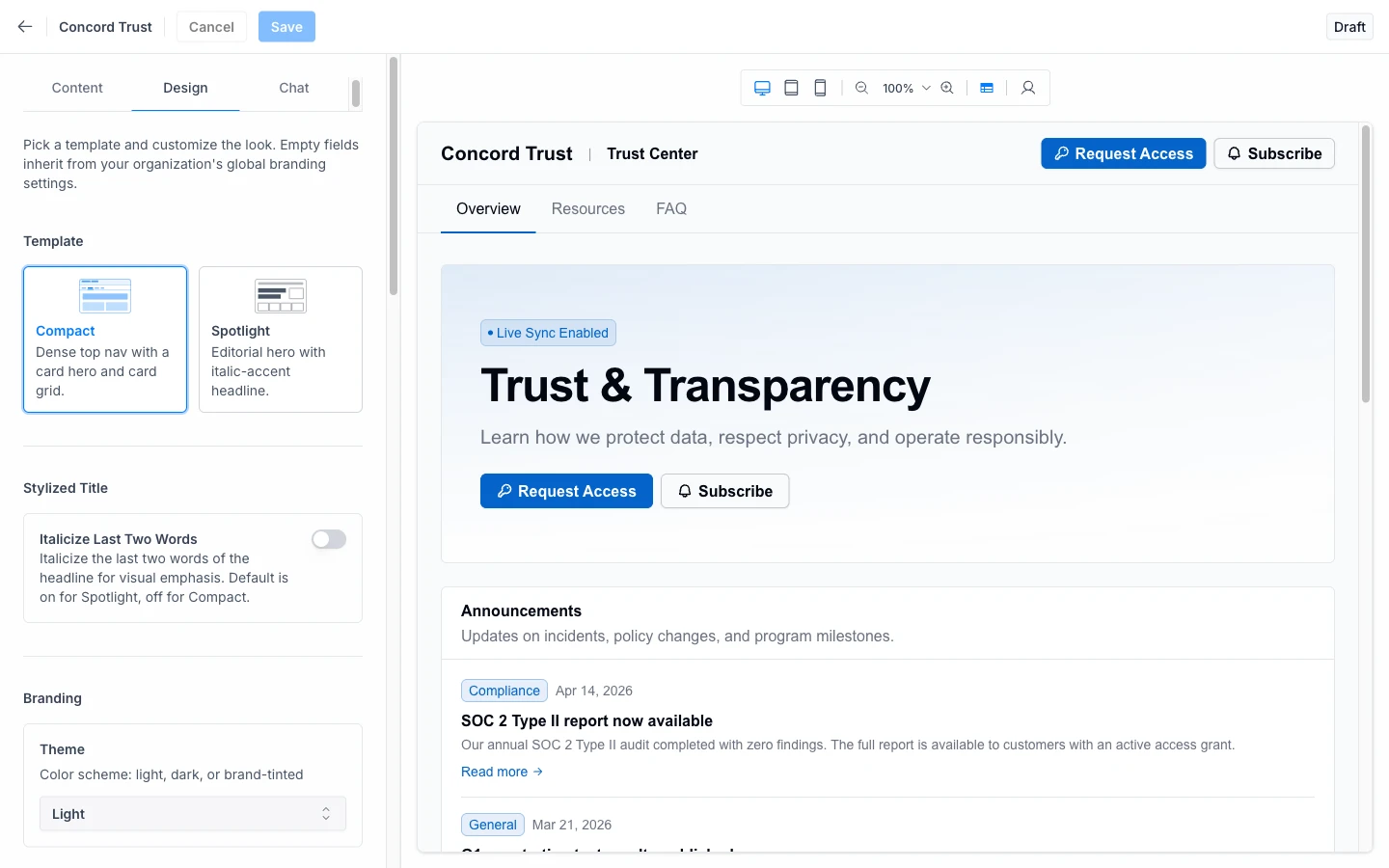
From the Design tab you can adjust your Trust Center's logo, colors, and layout.
Logo
Upload your company logo to display at the top of your Trust Center page. Horizontal logos are recommended. The logo is resized to fit the Trust Center header, so a height of approximately 40px is preferred.
- In the Trust Center editor, click Upload Logo (or click the existing logo to replace it).
- Select your logo file.
- Click Save.
Colors
Customize the primary and secondary colors used throughout your Trust Center.
- Primary color: used for buttons, links, and interactive elements on your Trust Center.
- Secondary color: used for the Trust Center header background and accent areas.
- In the Trust Center editor, select your Primary Color and Secondary Color.
- Click Save.
As with Content changes, saving keeps your edits as a Draft until you publish your Trust Center.
Additional Customization
Concord may offer additional customization options such as font selection and button styling. Check the Trust Center editor for the full set of available options.
Preview
After making design changes, preview your Trust Center to verify the logo, colors, and layout match your expectations before sharing the link with external visitors.
Related Articles
- Trust Center Overview
- Getting Started with Concord Trust
- Setting Up Your Trust Center Domain
- Setting Up Custom Branding (Logo, Colors, Font & Button/Card Radius) (branding for Concord Privacy's Consent Banner and Privacy Center)
Setting Up Your Trust Center Domain
How to configure your Trust Center domain, including the free trustcenter.to subdomain slug and custom domain setup.
Managing Your Trust Center Audience
How to review and approve access requests, manage NDAs, and control who can view gated content on your Concord Trust Center from the Audience page.