Setting Up Your Trust Center Domain
How to configure your Trust Center domain, including the free trustcenter.to subdomain slug and custom domain setup.
Overview
Every Concord Trust Center includes a free branded subdomain on trustcenter.to (e.g., yourcompany.trustcenter.to). This domain is ready to use as soon as you create your Trust Center. No DNS configuration required.
If you prefer your Trust Center to live on your own domain, you can configure a custom domain as well. Both subdomains (e.g., trust.acme.com) and apex domains (e.g., acme.com) are supported.
Accessing Domain Settings
- In the Concord Admin UI, go to Trust → Trust Center.
- Select the Domains tab.
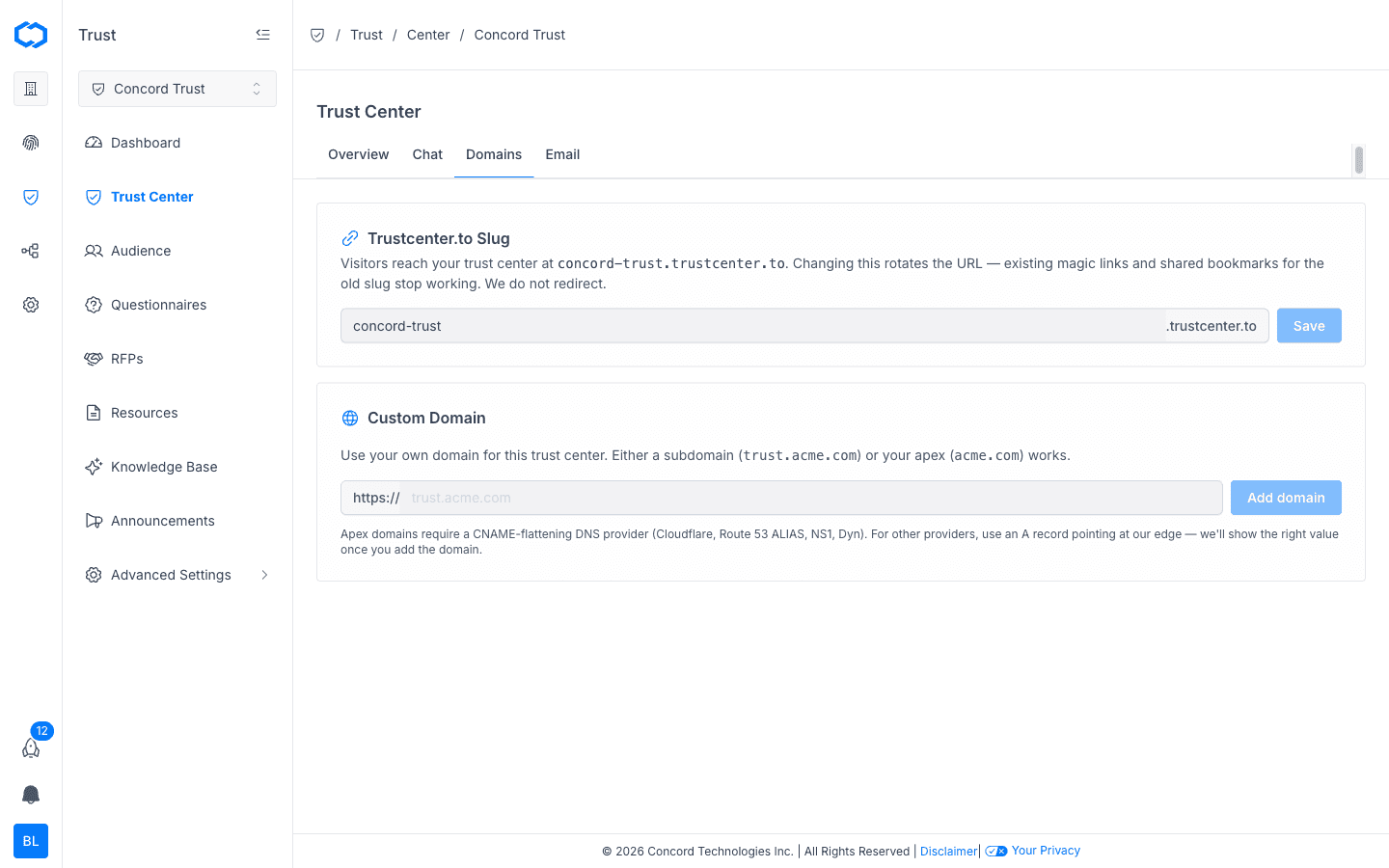
Your Trustcenter.to Slug
When you create your Trust Center, Concord assigns a trustcenter.to subdomain based on your organization name. Visitors reach your Trust Center at yourslug.trustcenter.to.
Changing Your Slug
You can change your trustcenter.to slug at any time:
- On the Domains tab, edit the slug field under Trustcenter.to Slug.
- Click Save.
Changing the slug rotates the URL. Existing magic links and shared bookmarks for the old slug will stop working. Concord does not redirect from the old slug to the new one. Update any links you have shared externally.
Setting Up a Custom Domain
A custom domain lets you serve your Trust Center from a URL you own. Either a subdomain (trust.acme.com) or your apex domain (acme.com) works.
Step 1: Add the Custom Domain in Concord
- On the Domains tab, find the Custom Domain section.
- Enter your desired domain (e.g.,
trust.acme.com). - Click Add domain.
Concord will display the DNS records you need to configure.
Step 2: Configure DNS
The DNS configuration depends on what type of domain you are using:
- Subdomain (e.g.,
trust.acme.com): add the DNS records shown in the Concord Admin UI. Concord will display the correct values once you add the domain. - Apex domain (e.g.,
acme.com): requires a CNAME-flattening DNS provider (Cloudflare, Route 53 ALIAS, NS1, Dyn). For other providers, use an A record pointing at Concord's edge. The correct value is shown in the Admin UI once you add the domain.
DNS propagation can take up to 48 hours, though most changes take effect within a few minutes to a few hours.
Step 3: Verify the Domain
Once DNS propagation is complete, Concord will verify the domain and provision an SSL certificate automatically. Your Trust Center will then be accessible at your custom domain over HTTPS.
- Return to the Domains tab in Trust → Trust Center.
- Check the status of your custom domain. It should show as verified once DNS propagation is complete.
Using Both Domains
When a custom domain is configured, both your trustcenter.to subdomain and your custom domain remain active. Visitors can access your Trust Center through either URL.
Troubleshooting
Domain Not Verifying
- Verify that the DNS records match exactly what Concord displays on the Domains tab.
- Allow up to 48 hours for DNS propagation.
- Check with your DNS provider that no conflicting records exist for the same host.
Apex Domain Not Working
- Confirm your DNS provider supports CNAME flattening (Cloudflare, Route 53 ALIAS, NS1, Dyn). If it does not, use an A record instead. The correct IP is shown in the Concord Admin UI.
- Some DNS providers require you to remove any existing A records for the same host before adding new records.
If you continue to experience issues, reach out to our support team at support@concord.tech.
Related Articles
Configuring Trust Center Email Settings
How to configure the From: address and notification settings for emails your Concord Trust Center sends, including access request and NDA notifications.
Trust Center Branding & Customization
How to customize the content and appearance of your Concord Trust Center, including hero text, logo, colors, and layout, so it matches your organization's brand.