Google: Understanding & Configuring Google Consent Mode (GCM) V2
Google Consent Mode V2 allows websites to adjust how and when data is shared with Google based on user consent collected via the Concord Consent Banner & Privacy Center. This article explains what Google Consent Mode (GCM) V2 is, how it works, and steps you through how to enable GCM in your Concord organization.
Overview
Concord is a Gold Certified CMP with Google and our Google Consent Mode V2 integration allows websites to adjust how and when data is shared with Google based on user consent collected via Concord. This article explains what Google Consent Mode (GCM) V2 is, how it works, and steps you through how to enable GCM in your Concord organization.
Our simplified setup integrates with Google in the following ways:
- Based on the user’s geographical location, privacy laws in that region, and your consent settings in Concord, we can be configured to block all non-essential cookies and scripts until the user grants consent. The GCM integration allows for a few different options that determine how and when Google tags are allowed and what data is shared with them and when.
- Regardless of the chosen GCM Mode (Basic vs. Advanced modes are discussed in more detail below), when enabled and once consent is granted, Concord automatically shares the user's consent preferences with Google, which changes the behavior of Google services based on these preferences. This works with both Google Tag Manager (GTM) and Google Tag (gtag).
What is Google Consent Mode V2?
Google Consent Mode v2 is an updated framework by Google that helps adjust data collection practices based on user consent. Features of this framework include:
- Implementation: Website owners can integrate Consent Mode to handle user consent for cookies used by Google Ad Manager.
- Integration: The framework works with Ad Manager and other Google products, adapting reporting and data collection practices based on consent preferences.
- Functionality: When consent is not given, Consent Mode can be set up to allow cookieless tracking that uses anonymous or aggregated data, allowing for consent-based data gaps to be filled using that cookieless data coupled with machine learning.
- Benefits: This approach helps balance privacy requirements with effective advertising and analytics, providing flexibility in managing user consent.
Google Consent Mode V2 works by modifying how Google tags behave based on user consent. The 7 parameters used in GCM V2 are:
- ad_storage: Enables storage, such as cookies, related to advertising.
- analytics_storage: Enables storage, such as cookies, related to analytics (for example, visit duration).
- functionality_storage: Enables storage that supports the functionality of the website or app such as language settings.
- personalization_storage: Enables storage related to personalization such as video recommendations.
- security_storage: Enables storage related to security such as authentication functionality, fraud prevention, and other user protection.
- ad_user_data: Sets consent for sending user data to Google for online advertising purposes. This was newly added in V2.
- ad_personalization: Sets consent for personalized advertising. This was newly added in V2.
How to Enable Basic or Advanced Modes for Google Consent Mode V2 in Concord
You can pick from three different modes when enabling Google Consent Mode V2 in Concord:
- Disabled: Concord functions normally, blocking any Google tags until consent is received based on your standard consent and tracker settings. After user consent is received, no consent data is synced with Google.
- Basic Mode: Basic Consent Mode offers a simplified privacy-friendly option to sync data with Google. Google tags remain inactive until the user interacts with the consent banner. Once users consent, Google tags are enabled, consent data is synced, and Google begins collecting data based on the user’s consent settings. Without consent, no data is sent to Google, and Google Ads relies on a general conversion model.
- Advanced Mode: Advanced Consent Mode offers a more robust option that shares additional data with Google prior to consent. Google tags load immediately and while waiting for user consent, a minimal amount of cookieless measurement data is sent to Google to allow for more accurate conversion modeling. Once consent is granted, full measurement data is then sent to Google based on each user’s consent settings. For more details on Google’s conversion modeling please refer to https://support.google.com/google-ads/answer/12443859
Configuring Google Consent Mode V2 in Concord
- Log in to Concord’s Admin UI and go to Privacy → Consent → Consent Settings. Google Consent Mode is set per region, so first choose the region you want to configure with the region switcher in the top bar (or open a specific region under Privacy → Deployment → Regions).
- Open the Integrations tab, select the Google Consent Mode V2 dropdown, and choose Disabled (default), Basic, or Advanced. Click Save to apply your changes. Repeat for any other region where you want Consent Mode enabled.
- View your Google Consent Mode configuration status in the Privacy → Deployment → Installation → Google section in the Concord app, and use the instructions and links on that page if implementing via Google Tag Manager.
Using Google Consent Mode with IAB TCF
If your organization uses the IAB TCF v2.3 framework, Google can read advertising consent (ad_storage, ad_user_data, and ad_personalization) directly from your TCF consent string. Enable the Allow Google Consent Mode to read TCF signals toggle on the General Settings tab (inside the IAB TCF box, shown once a TCF mode is enabled) to turn this on. Like the mode above, it is set per region and is off by default.
This is independent of the Google Consent Mode mode you select above. analytics_storage is still driven by Google Consent Mode, so keep GCM set to Basic or Advanced: if TCF is enabled but GCM is Disabled, no Consent Mode signals are sent to Google at all. For full setup, see Configuring IAB TCF v2.3.
Disabling Consent Mode
If you need to stop sending Consent Mode signals and return to standard tag blocking, where Google tags stay blocked until consent and no consent data is synced, set the Google Consent Mode V2 dropdown back to Disabled on the Integrations tab under Privacy → Consent → Consent Settings (in each region where it was enabled) and click Save. Concord then stops emitting the Consent Mode default and update commands and re-enables tracker blocking based on your standard consent and tracker settings. Depending on how you implemented Google (Google Tag Manager or gtag), you may also need to remove the on-page gtag('consent', 'default', …) block you added during setup.
Implementing Google Consent Mode via Google Tag Manager or Gtag
Regardless of the Google option that you use (you should use either Google Tag Manager or Gtag and not both), we highly recommend first following our Install Concord instructions in the Deployment → Installation → Install Concord section of the Concord Admin UI to add the Concord code to your website. Concord should be in the <head> section and should always be above other external script tags to ensure that the scanning and blocking process functions correctly. Once that is complete (or if you want to use Google Tag Manager to inject the Concord code, which is not recommended), follow the instructions below or refer to the detailed Google docs: https://developers.google.com/tag-platform/security/guides/consent?consentmode=basic
Google Tag Manager (Option 1)
When using Google Tag Manager and our Google Tag Manager community template (available in the GTM gallery), you have two implementation options. Use the Concord GTM community template along with the Project ID found in the Deployment → Installation → Google section of the Admin UI. We recommend configuring it to run using the Consent Initialization - All Pages Trigger option and set the default Google consent settings to denied initially.
- Follow the Install Concord instructions in the Deployment → Installation section in the Concord Admin UI to directly install Concord on your website. Our single line of code is placed at the top of the
<head>section of your website, and you then add the Google Tag Manager script below the Concord script. That ensures that Concord runs first, allowing better control over the process and easier selection between different Google Consent Modes in Concord. We recommend you use this method in almost all cases. - You can use the Inject Concord Script option found in our Google Tag Manager template. In this case, Google will control the initialization process and Google will automatically inject our script onto your website. Since we are not guaranteed to run first, all other scripts, cookies, and iframes (trackers) would also need to be implemented and ordered correctly in Google Tag Manager. As this can be an error prone process that is not future proof, we highly recommend choosing the first option above.
Regardless of which implementation option you use, you will use our Google Tag Manager community template along with the Project ID found in the Deployment → Installation → Google section of the Admin UI. We should be configured to run using the Consent Initialization - All Pages Trigger option shown below and the default Google consent settings should typically all be set to denied initially. In most cases the rest of the settings do not need to be adjusted.
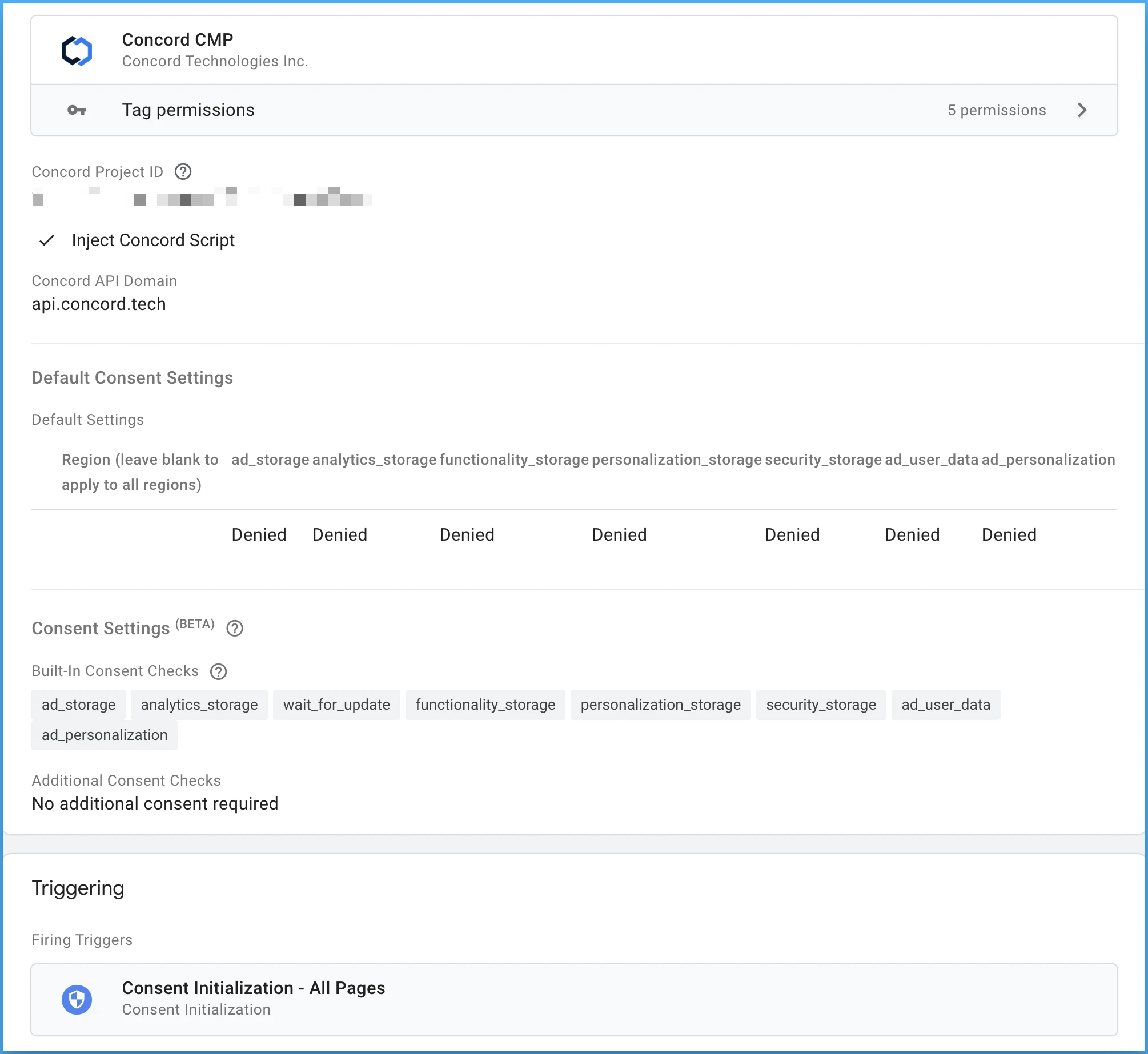
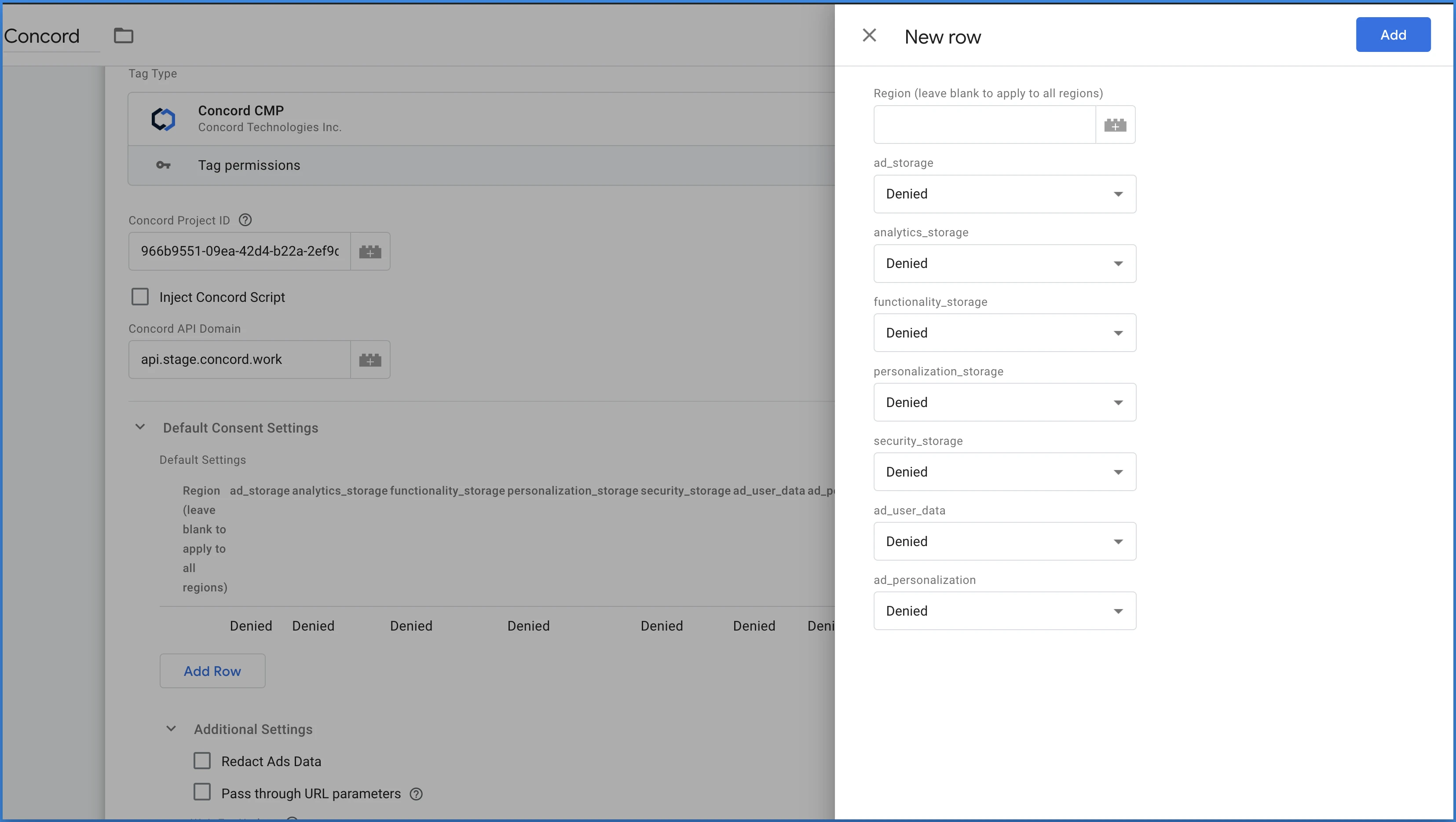
The user’s consent settings will now be automatically synced with Google based on their consent choices in your Concord Consent Banner & Privacy Center.
Gtag (Option 2)
First, add your normal Gtag code to your page below the Concord script you implemented above, ensuring that the Concord script is above the Gtag script. Once that is done, add the separate dataLayer object found below before your Concord code. This establishes your consent defaults in the data layer, but will not trigger your Google tag, since you haven't loaded the Google tag library yet.
<script>
  window.dataLayer = window.dataLayer || [];
  function gtag() { dataLayer.push(arguments); }
  gtag('consent', 'default', {
    ad_personalization: 'denied',
    ad_storage: 'denied',
    ad_user_data: 'denied',
    analytics_storage: 'denied',
    functionality_storage: 'denied',
    personalization_storage: 'denied',
    security_storage: 'granted',
    'wait_for_update': 500,
  });
  gtag('js', new Date());
  gtag('config', 'Google tag ID');
  </script>
Concord will now automatically integrate with your Google Gtag script prior to consent and will handle everything else for you automatically based on user consent choices.
Banner Requirements for Consent Mode
When you enable Consent Mode without IAB TCF, configure your Concord consent banner so it meets Google's banner requirements under Google's EU User Consent Policy. Your banner should:
- Explain that data is collected for the purpose of personalizing and measuring the effectiveness of advertising.
- Link to Google's Privacy & Terms for partners.
- Include an affirmative consent option (for example, an "Accept" action) so users can actively grant consent.
Concord's consent banner is fully configurable from the admin UI, so you can set this language and link in your banner content and confirm an affirmative accept action is present. When IAB TCF is enabled, the privacy center already presents TCF-compliant language. See Configuring IAB TCF v2.3.
Google Tag Gateway and Late Consent
If you serve Google scripts through Google Tag Gateway (GTG), for example via one-click CDN injection, the Google tag can load before Concord's Consent Mode default command is on the page, producing a late consent signal. Concord's in-product validation flags this and points you to the right next step.
For how to verify GTG enrollment and what to do about it (including adopting advanced consent mode, or U+C, which is recommended for GTG-enabled tags), see Google Tag Gateway (GTG) and Consent Mode.
Additional Resources
For more details on the different Google options, including advanced settings like region-specific behaviors in Google Tag Manager or URL passthroughs, please refer to the Google docs:
- https://developers.google.com/gtagjs/devguide/consent
- https://support.google.com/analytics/answer/14546213
Our Google Consent Management Partner (CMP) Support Commitment
As a Gold Certified CMP Partner with Google, our support team is dedicated to ensuring you are successful when it comes to integrating Concord’s CMP with Google. We offer comprehensive assistance for all aspects of our platform, including setting up Concord and integrating with Google via our Google Consent Mode V2 integration.
Ways to get support:
- Live chat via our in-app chat at https://admin.concord.tech/
- Email support via google@concord.tech or support@concord.tech
- Self-service web support via our Help Center: https://concord.tech/docs
For more information on Concord’s Support Commitment, visit: https://concord.tech/docs/concord-support-commitment
Related Articles
- For help setting up a new organization including organization details, consent banner settings, and branding details, visit Concord’s Getting Started Guide.
- Understanding & Configuring Auto-Blocking of Cookies & Scripts
- Google Consent Mode V2 (GCM) Scanning User Guide
- Scanning Your Site for Trackers (Cookies & Scripts)
- Configuring IAB TCF v2.3
Google: Google Tag Gateway (GTG) & Consent Mode
What Google Tag Gateway (GTG) is, how first-party script serving can affect consent load order, how to verify whether a tag is enrolled in GTG, and what to do when Concord detects a late consent signal on a GTG-enabled tag, including adopting advanced consent mode (U+C).
Hubspot Integration Guide
Step-by-step instructions on how to integrate Concord via Hubspot