How to Configure Your Consent Banner for Different Geographical Regions
How to enable different settings for different geographical regions.
Overview
Regions are used to customize the behavior and experience based on an individual user's location. As an example, this allows you to provide different experiences to users based on regional differences (like GDPR in the EU vs. CCPA/CPRA in California). When a user visits your site, we will automatically determine their location and will match them to the most granular region rule that you have setup in Concord. This can go down to the state/province level, which allows for different experiences for different laws (like CCPA/CPRA in California). While you can get as granular as you want, we typically recommend a single global policy that meets the strictest guidelines across regions, or higher splits (like separate GDPR and United States regions). If you have any questions on how and why to configure your regions in certain ways, please reach out to our support team.
Adding a Custom Region
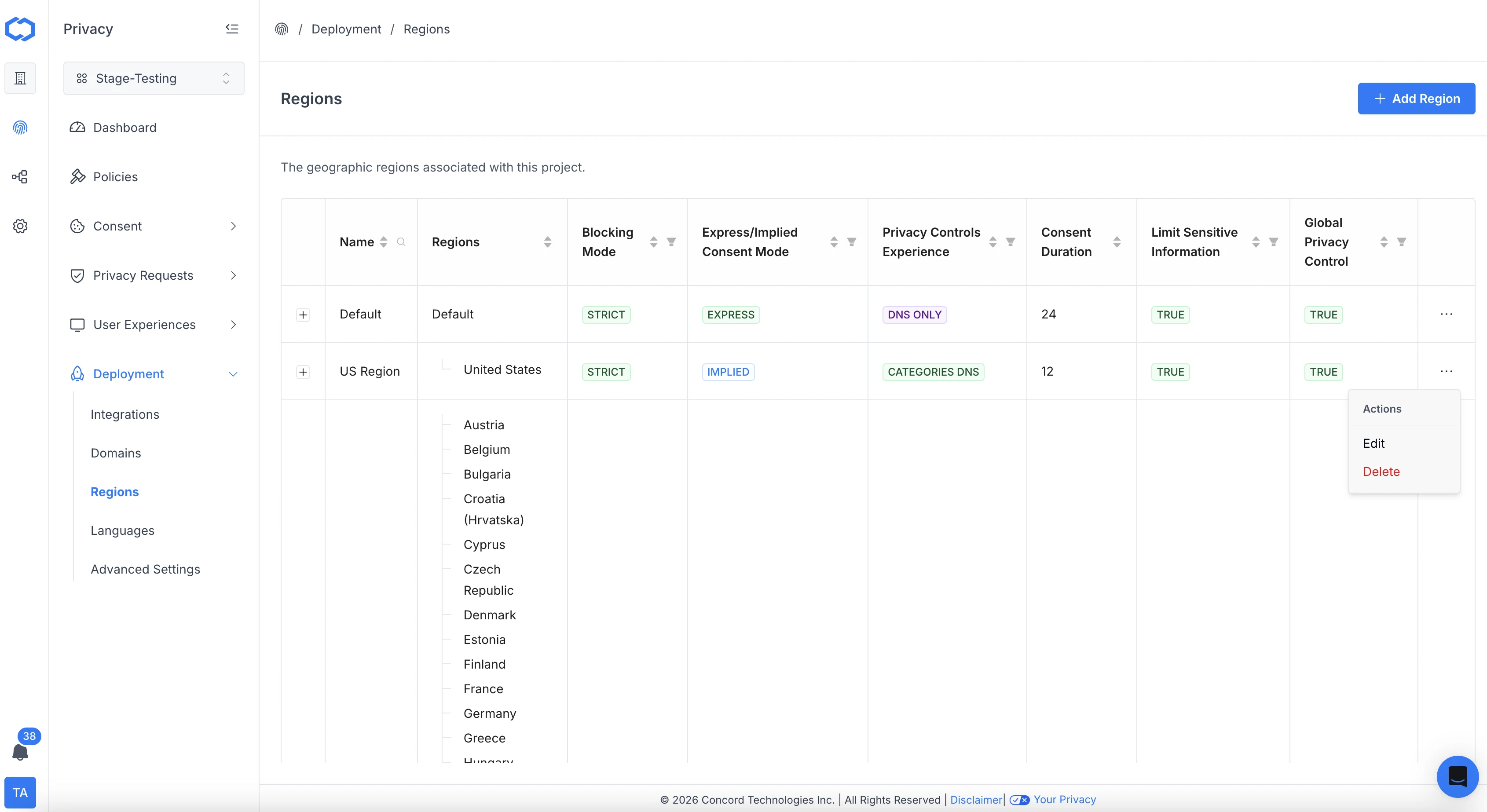
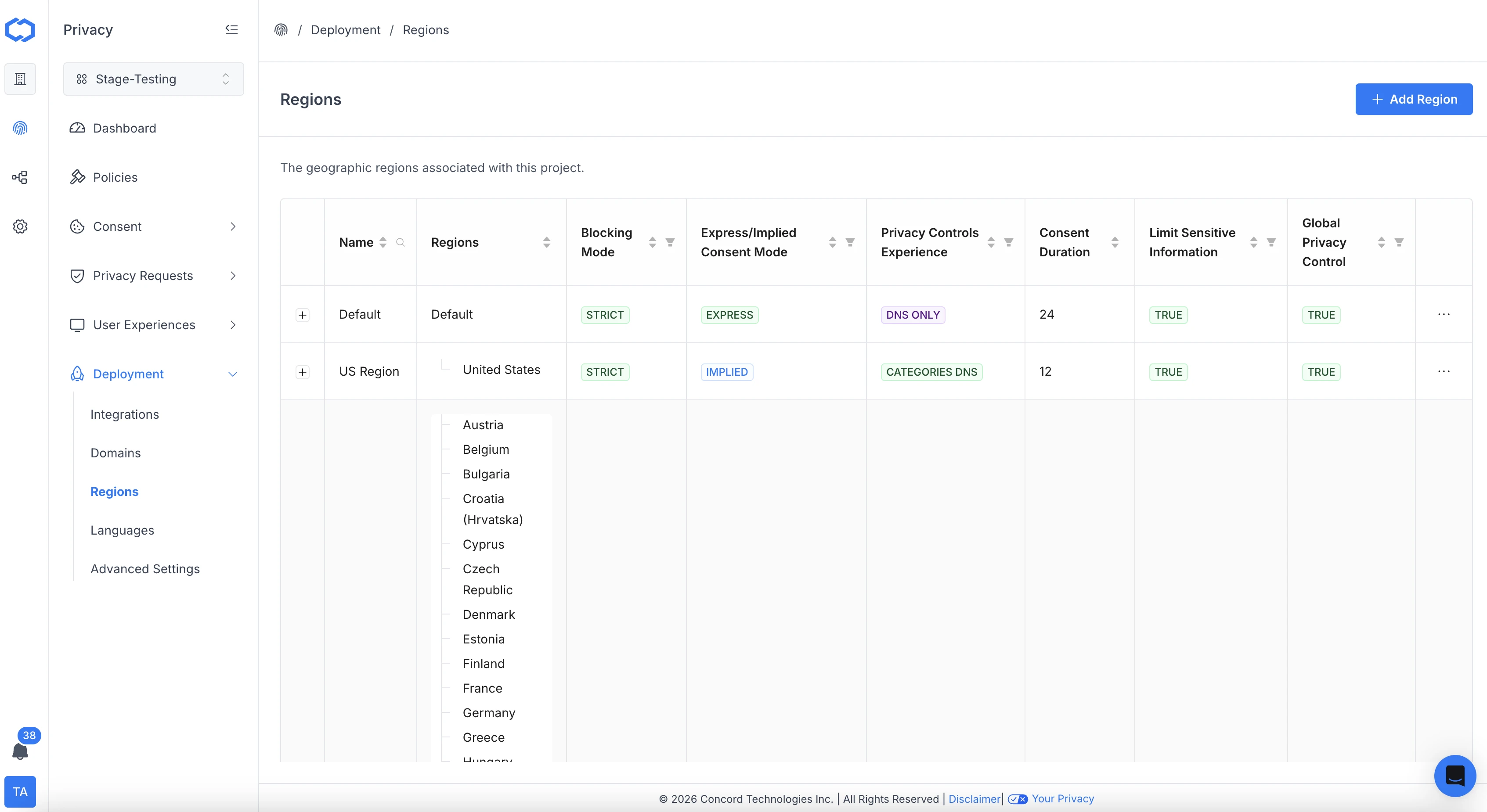
- Login to Concord and navigate to Privacy → Deployment → Regions. Note that the Default region cannot be deleted and that a user will see the Default consent banner if there are no other matching region rules based on the user’s location.
- Click the Add Region button to open the Add Region wizard. Select one of the following region template options, and click the Next button.
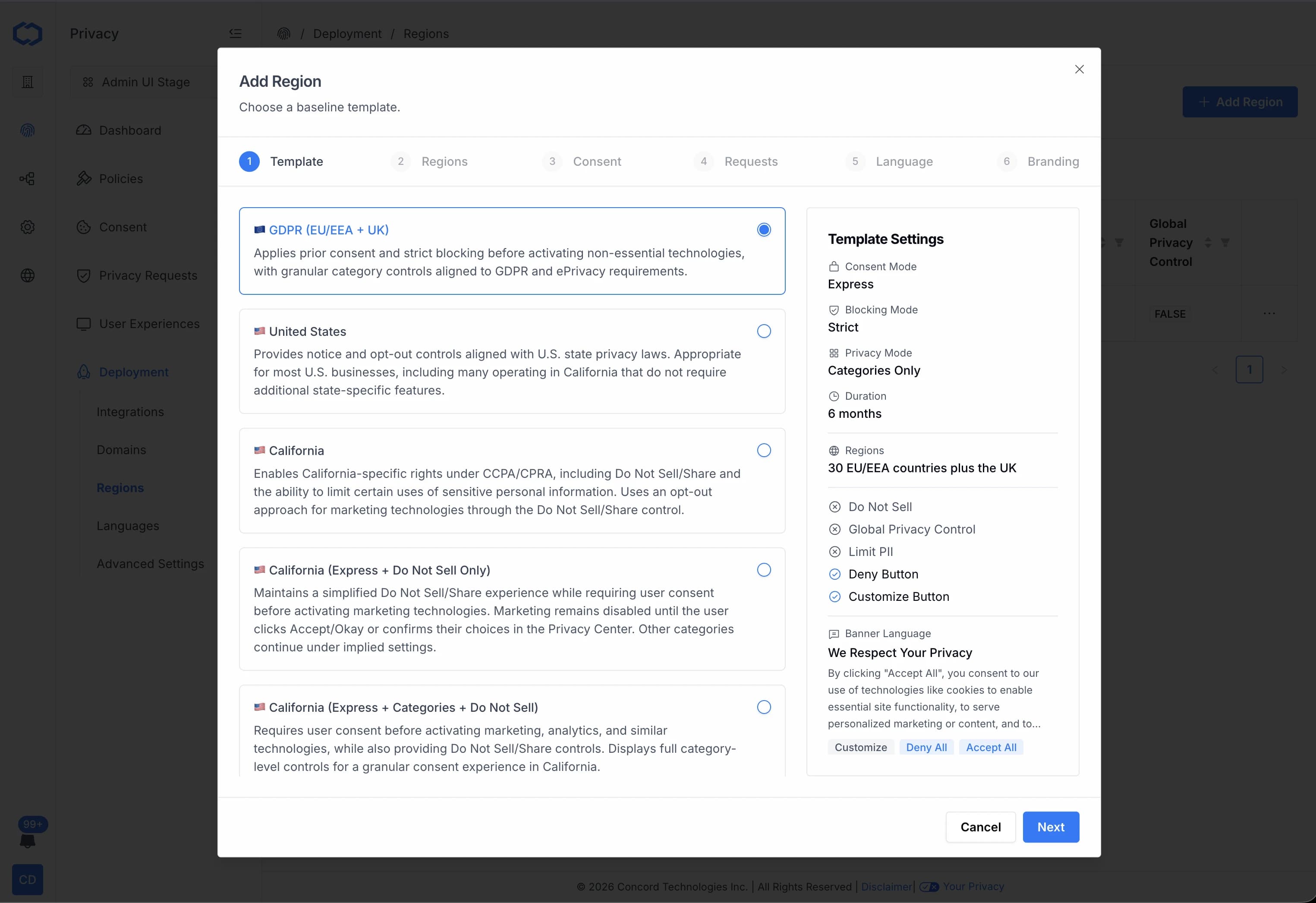
- GDPR (EU/EEA + UK): Applies prior consent and strict blocking before activating non-essential technologies, with granular category controls aligned to GDPR and ePrivacy requirements.
- United States: Provides notice and opt-out controls aligned with U.S. state privacy laws. Appropriate for most U.S. businesses, including many operating in California that do not require additional state-specific features.
- California: Enables California-specific rights under CCPA/CPRA, including Do Not Sell/Share and the ability to limit certain uses of sensitive personal information. Uses an opt-out approach for marketing technologies through the Do Not Sell/Share control.
- California (Express + Do Not Sell Only): Maintains a simplified Do Not Sell/Share experience while requiring user consent before activating marketing technologies. Marketing remains disabled until the user clicks Accept/Okay or confirms their choices in the Privacy Center. Other categories continue under implied settings.
- California (Express + Categories + Do Not Sell): Requires user consent before activating marketing, analytics, and similar technologies, while also providing Do Not Sell/Share controls. Displays full category-level controls for a granular consent experience in California.
- PIPEDA (Canada): Applies meaningful consent and category-based controls before activating advertising and similar technologies, reflecting Canadian privacy law requirements.
- LGPD (Brazil): Applies prior consent and category-based controls before activating non-essential technologies, reflecting Brazil’s data protection framework.
- DPDPA (India): Applies consent-based activation controls aligned with India’s Digital Personal Data Protection Act (DPDPA), supporting transparent and user-driven data practices.
- Custom: Fully customizable settings to meet your specific privacy requirements and preferences. Start with a blank slate and configure consent, blocking, and category controls as needed.
Note that we will pre-populate the region settings on the following screens based on that choice, but the specific settings can always be adjusted later if preferred.
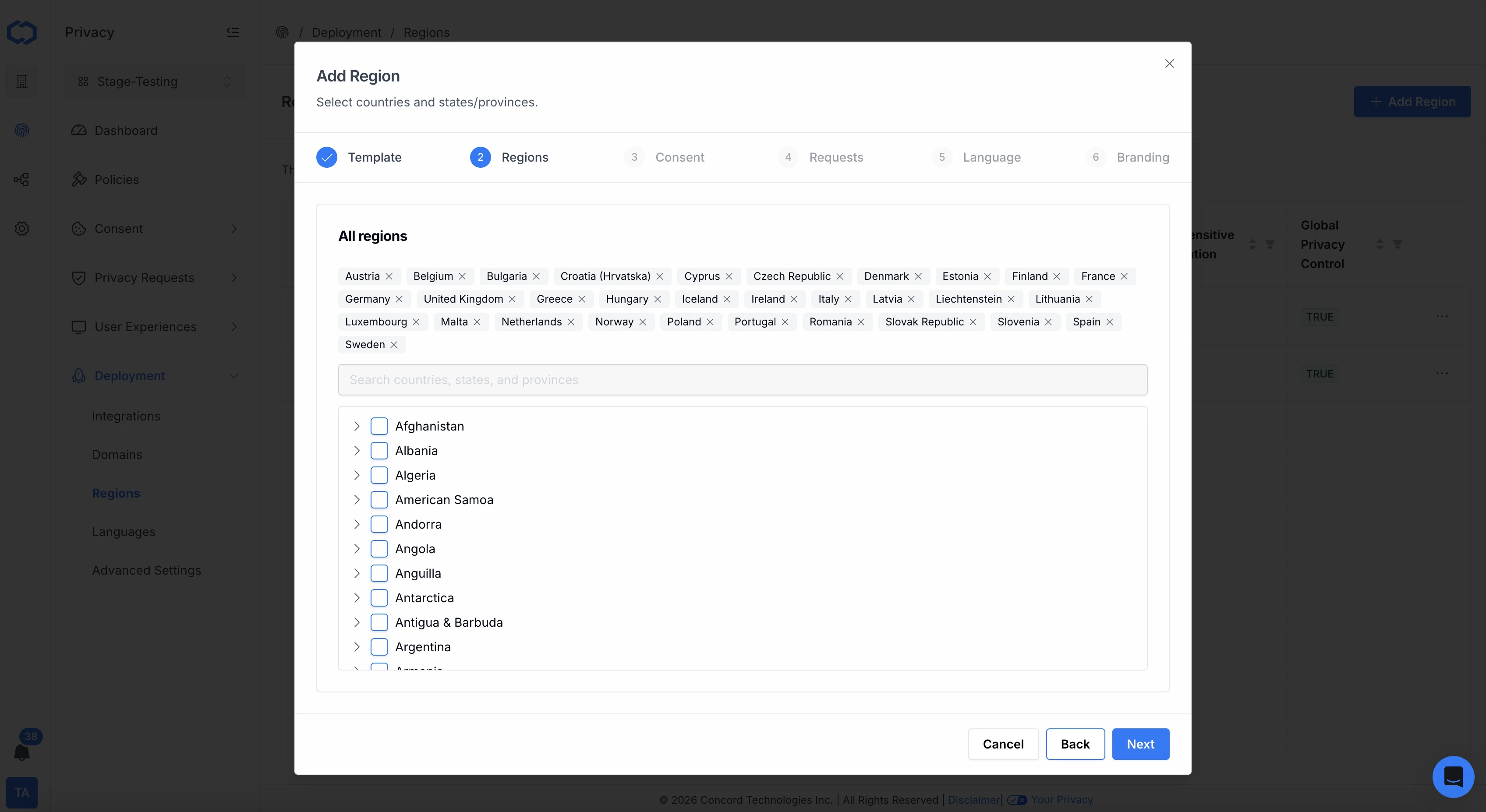
- Click Next to keep the default regions based on your previous selection or add or remove the regions that you want to apply to this region template.
- On the Consent page you can review and customize the consent settings for your selected region.
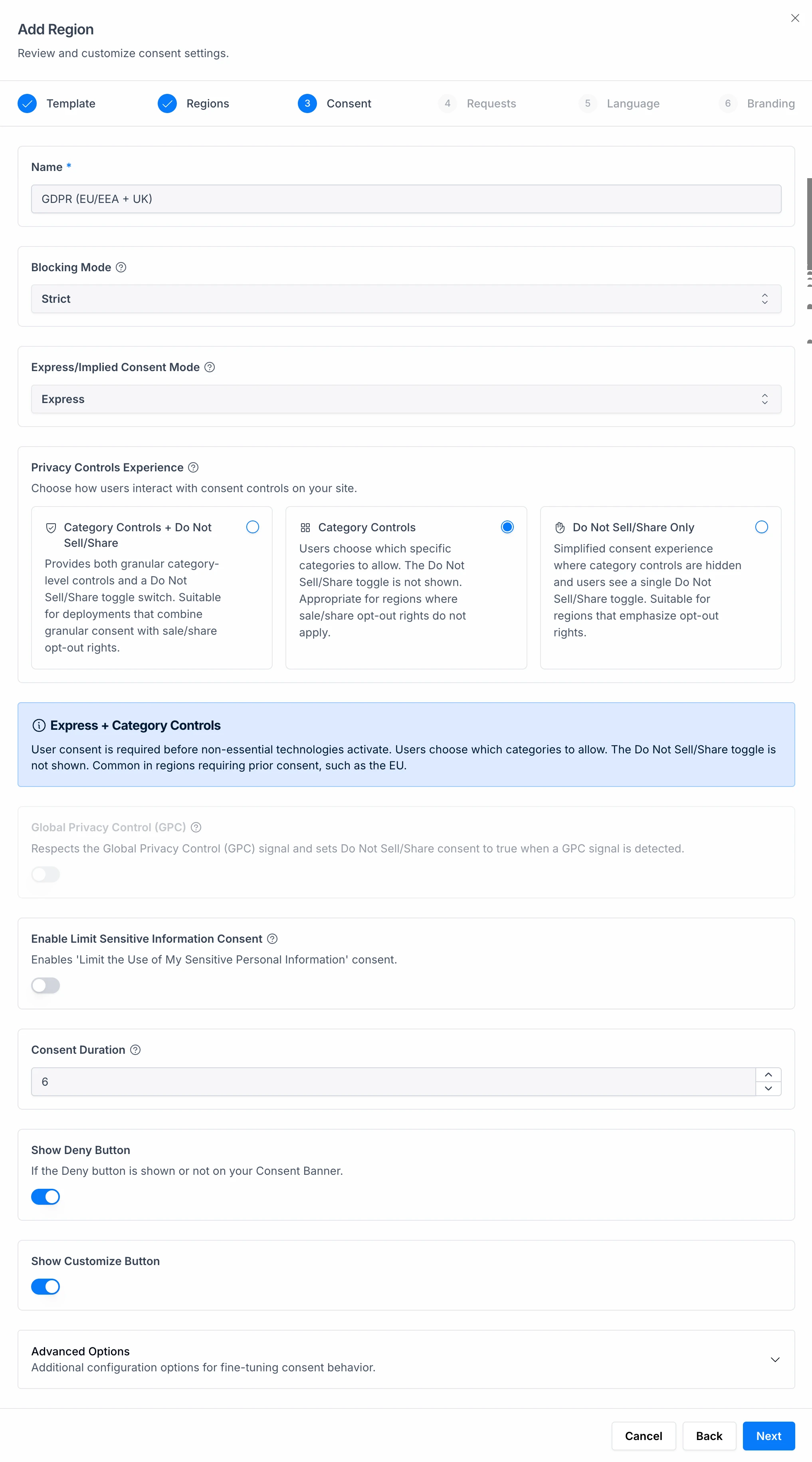
On the Consent page, you can configure the following settings:
- Name: Add a descriptive name for the region template.
- Blocking Mode: For global compliance, including compliance with stricter privacy laws like GDPR, this should typically be set to Strict mode after categorization. If this is disabled, no blocking or detection of cookies and scripts will occur.
- During the setup process, we recommend that you initially set the blocking mode to Discovery. This mode collects information from your site which is used to classify tracking scripts and cookies without blocking them.
- This allows Concord to automatically classify the most common types of cookies and scripts, while giving you the flexibility to customize the categorization and blocking to your needs.
- You will keep this setting in place until you are ready to go-live on your production site.
- When deploying to production, you will set this to Strict or Permissive.
- Strict is recommended as all scripts and cookies that aren’t categorized as strictly necessary are blocked. This is required for full compliance with stricter privacy laws like GDPR.
- Permissive mode will allow Strictly Necessary, Ignored, and Unclassified cookies and scripts to run until user consent preferences are set.
- Note that in all modes, ignored scripts, iframes, images, and links will not be blocked. We capture a larger list of these items than most others tools to ensure true compliance by helping to make sure that nothing falls between the cracks. Ignored items should be regularly reviewed, but only need to be categorized if they touch customer data (including things like IP address in the case of stricter laws like GDPR).
- Express/Implied Consent Mode: ~~Consent: Configure your organization’s consent settings including:~~
- Express: In Express Consent Mode, the user must interact with the Consent Banner or the Privacy Center to set their preferences. No consent is initially assumed merely by landing on or using the site.
- Implied: When using Implied Consent Mode, Concord will automatically generate implied consent events for all categories when the user lands on the site. They can later choose to opt-out of certain categories via your Consent Banner or Privacy Center (depending upon your configured settings and options there).
- Privacy Controls Experience: This setting works in conjunction with the Express and Implied Consent Modes to determine the experience for users when they interact with your Consent Banner and Privacy Center. You can choose one of the following configuration options:
- Category Controls + Do Not Sell/Share
- Provides both granular category-level controls and a Do Not Sell/Share toggle switch. Suitable for deployments that combine granular consent with sale/share opt-out rights.
- All categories are enabled on arrival. Users can opt out of individual categories and use the Do Not Sell/Share toggle. Common in U.S. deployments that combine category controls with opt-out rights.
- Category Controls
- Users choose which specific categories to allow. The Do Not Sell/Share toggle is not shown. Appropriate for regions where sale/share opt-out rights do not apply.
- All categories are enabled on arrival. Users can opt out of individual categories. The Do Not Sell/Share toggle is not shown. Appropriate for regions where sale/share opt-out rights do not apply.
- Do Not Sell/Share Only
- Simplified consent experience where category controls are hidden and users see a single Do Not Sell/Share toggle. Suitable for regions that emphasize opt-out rights.
- All categories are enabled on arrival. Users can opt out of individual categories. The Do Not Sell/Share toggle is not shown. Appropriate for regions where sale/share opt-out rights do not apply.
- Category Controls + Do Not Sell/Share
- Global Privacy Control (GPC) is a browser configuration that automatically signals users’ privacy preferences to a website. Various regulations such as CCPA and CPRA require websites to respect users’ choices when this browser setting is detected.
- Global Privacy Control detection is required by some regional data privacy laws like CCPA/CPRA in California. When this is enabled and a GPC signal is detected, Do Not Sell or Share My Personal Information consent will be set to true and Marketing consent will be disabled.
- Note that you must select either the Category Controls + Do Not Sell/Share or Do Not Sell/Share Only option in the Privacy Controls Experience section if you want to enable Global Privacy Control.
- When you enable this feature within Concord, and the user has GPC turned on in their browser settings, Concord’s consent banner will display the following message: Your Opt-Out Preferences Was Honored. Do Not Sell or Share My Personal Information will also be automatically checked.
- Enable Limit Sensitive Information Consent: Enables the Limit the Use of My Sensitive Personal Information consent option in your Privacy Center. This is required by some regional data privacy laws like CCPA/CPRA in California.
- Consent Duration: The Consent Duration field defines how many months the consent is valid for. Once the duration has expired, the user will be prompted to re-consent. The normal recommended duration is 12 months, but some regions have different requirements and recommendations, including countries like Germany, where the guidance is 6 months.
- Show Deny Button: The show Show Deny toggle allows you to set if the Deny button shows on your consent banner. Note that this option is only available if you choose the Category Controls + Do Not Sell/Share or Category Controls in the Privacy Controls Experience section.
- Advanced Options
- Hide Unused Categories: When enabled, consent categories that have no trackers assigned to them will be hidden from the Privacy Center and Consent Banner. In Implied mode, hidden categories still receive implied consent. In Express mode, hidden categories are excluded from Accept All but included in Reject All. Categories automatically reappear when trackers are detected.
- Implied Consent Delay: Sets a delay (in seconds) before implied consent is automatically granted when the user first visits your site. A value of 0 means consent is implied immediately. Increasing this value gives users more time to interact with the consent banner before implied consent is recorded. You can set the number of seconds to wait before generating implied consent events after a user arrives on your site. This only applies when using Implied consent mode.
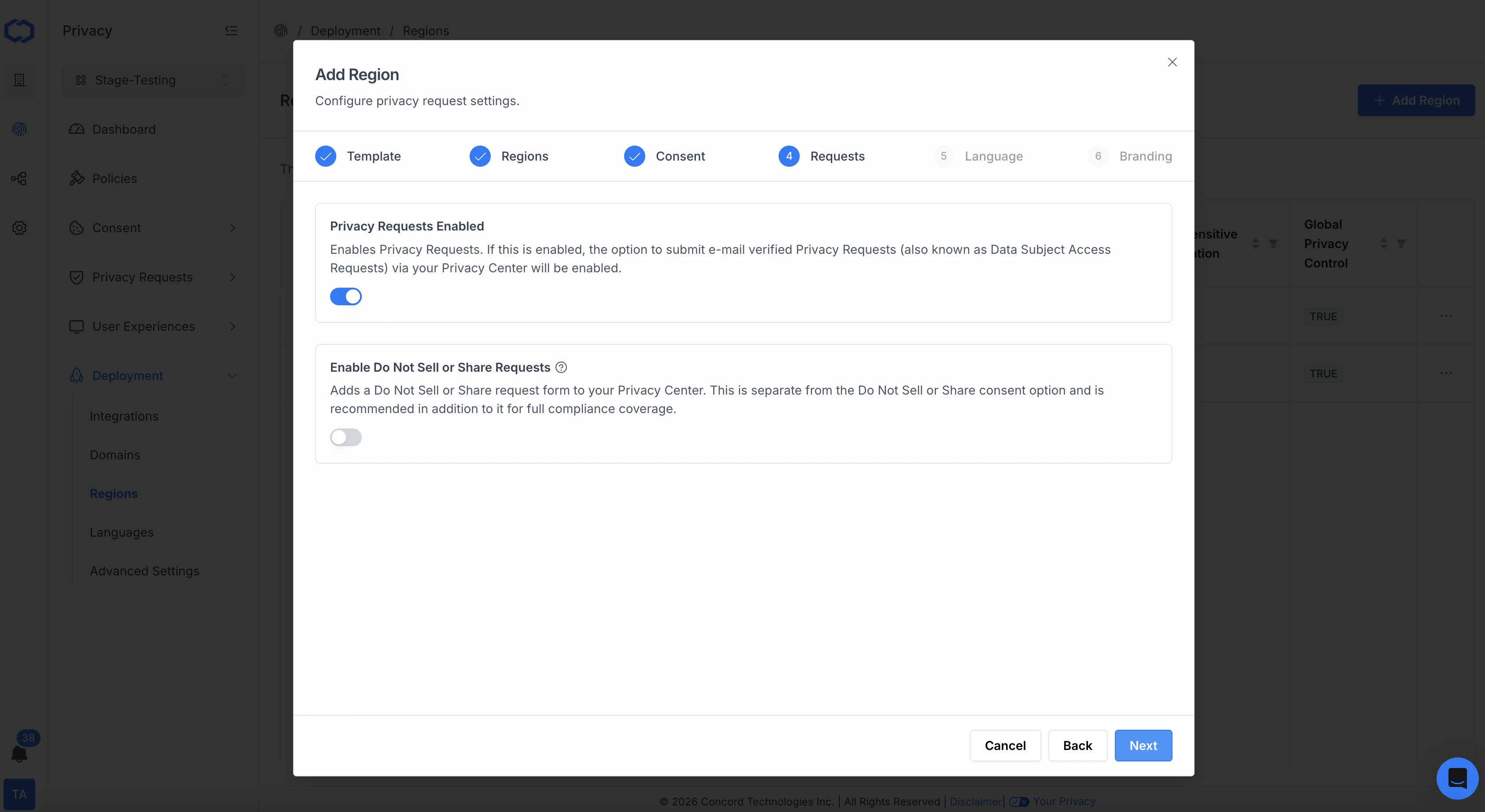
- On the Requests page, you can enable or disable the following options:
- Privacy Requests Enabled: If this is enabled, the option to submit e-mail verified Privacy Requests (also known as Data Subject Access Requests) via your Privacy Center will be enabled.
- Enable Do Not Sell or Share Requests: This option adds a Do Not Sell or Share request form to your Privacy Center. This is separate from the Do Not Sell or Share consent option and is recommended in addition to it for full compliance coverage.
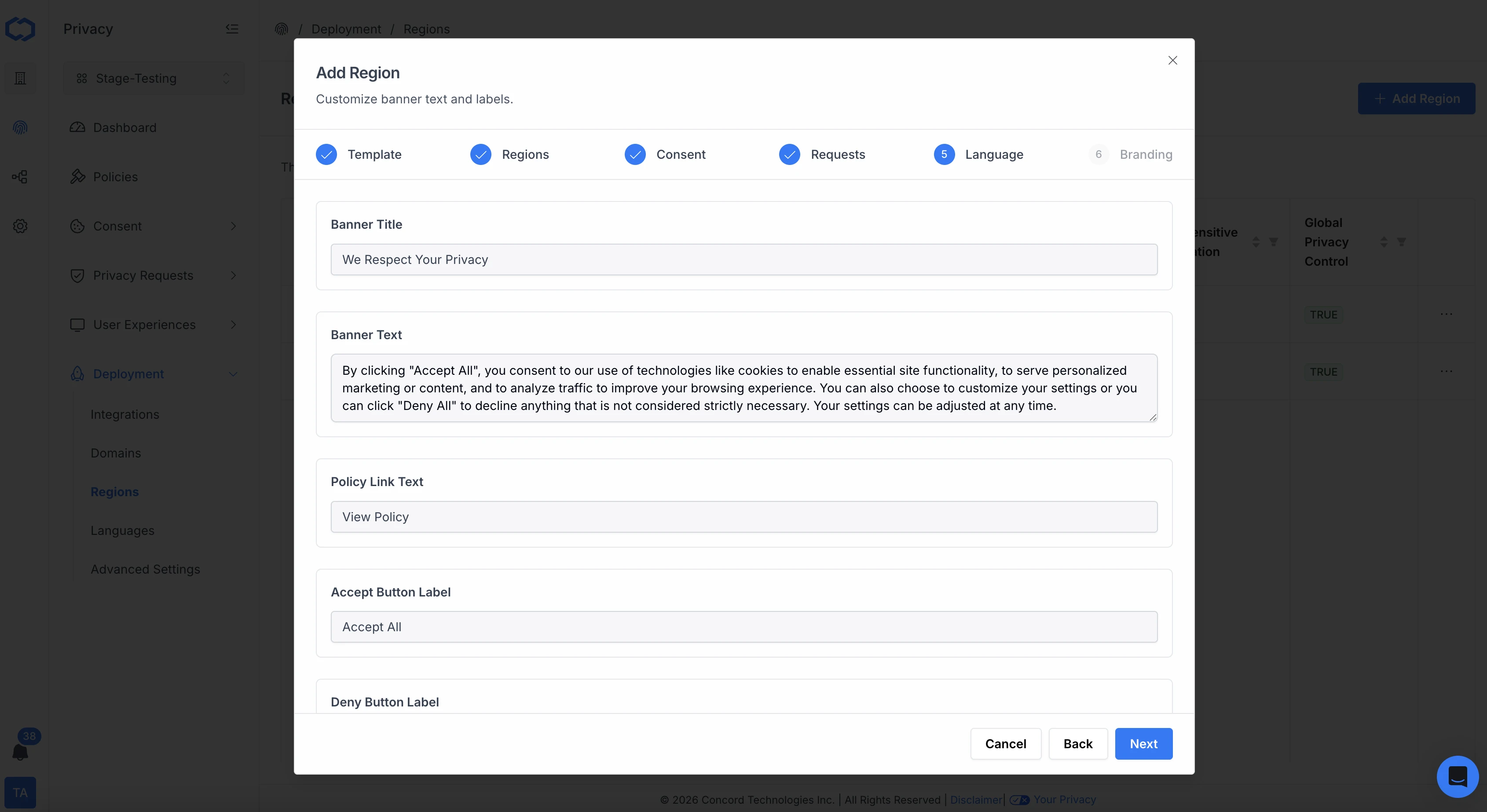
- On the Language page, you can customize the following text on the consent banner for the region you are configuring including:
- Banner Title
- Banner Text — supports inline Policy Link tokens. Insert a reusable link to your Privacy Policy, Terms of Service, Cookie Policy, Data Protection Agreement, or any custom policy via the Insert Link menu in the text editor. Policy Links are managed under Policies → Links — see Managing Policy Links.
- Accept Button Label
- Customize Button Label
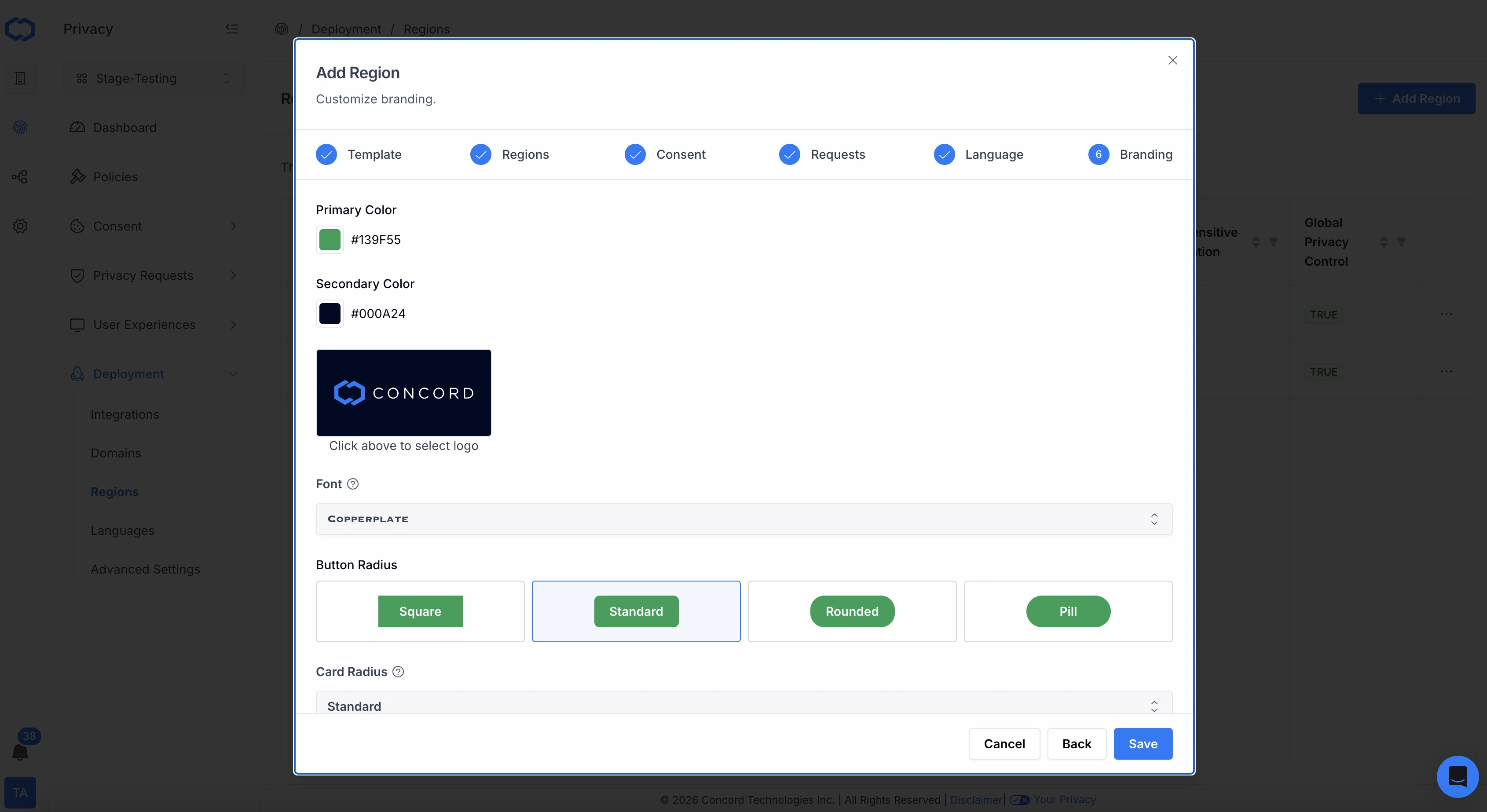
- On the Branding tab, you can customize the look and feel of the consent banner by region including:
- Primary Color
- Secondary Color
- Logo
- Font
- Button Radius
- Card Radius
- Powered by Concord Logo
For teams on Premium, or Enterprise that need tighter brand fit than the built-in branding controls allow, each widget editor (consent banner, privacy center, floating button) also exposes a Custom CSS accordion pinned to the bottom of its settings tab, with CSS variable and raw CSS overrides. See Customizing Consent Banner Styling.
Click Save to save and apply your new region settings. To add additional regions, repeat the above steps.
Editing a Region
Your newly configured region template will now show in the Regions table. You can click Edit to change your template configuration or Delete to delete any of you region templates other than the Default region.