Data Hub: Processing Activities
How to add, view, edit, and manage processing activities in the Concord Data Hub.
Overview
The Data Hub > Processing Activities page is where you define and document how your organization processes personal data. Processing activities describe specific business operations that involve collecting, storing, or using personal data, such as "Customer Onboarding," "Marketing Email Campaigns," or "Employee Payroll."
Documenting your processing activities is a key requirement for GDPR compliance (Article 30 requires a Record of Processing Activities, or ROPA) and helps demonstrate accountability across other privacy regulations.
Processing Activities is only visible in the Admin UI for customers subscribed to Concord Privacy. If your organization has Concord Trust but not Concord Privacy, this section will not appear in the Data Hub sidebar.
Viewing Processing Activities
- In the Concord Admin UI, go to Data Hub > Processing Activities.
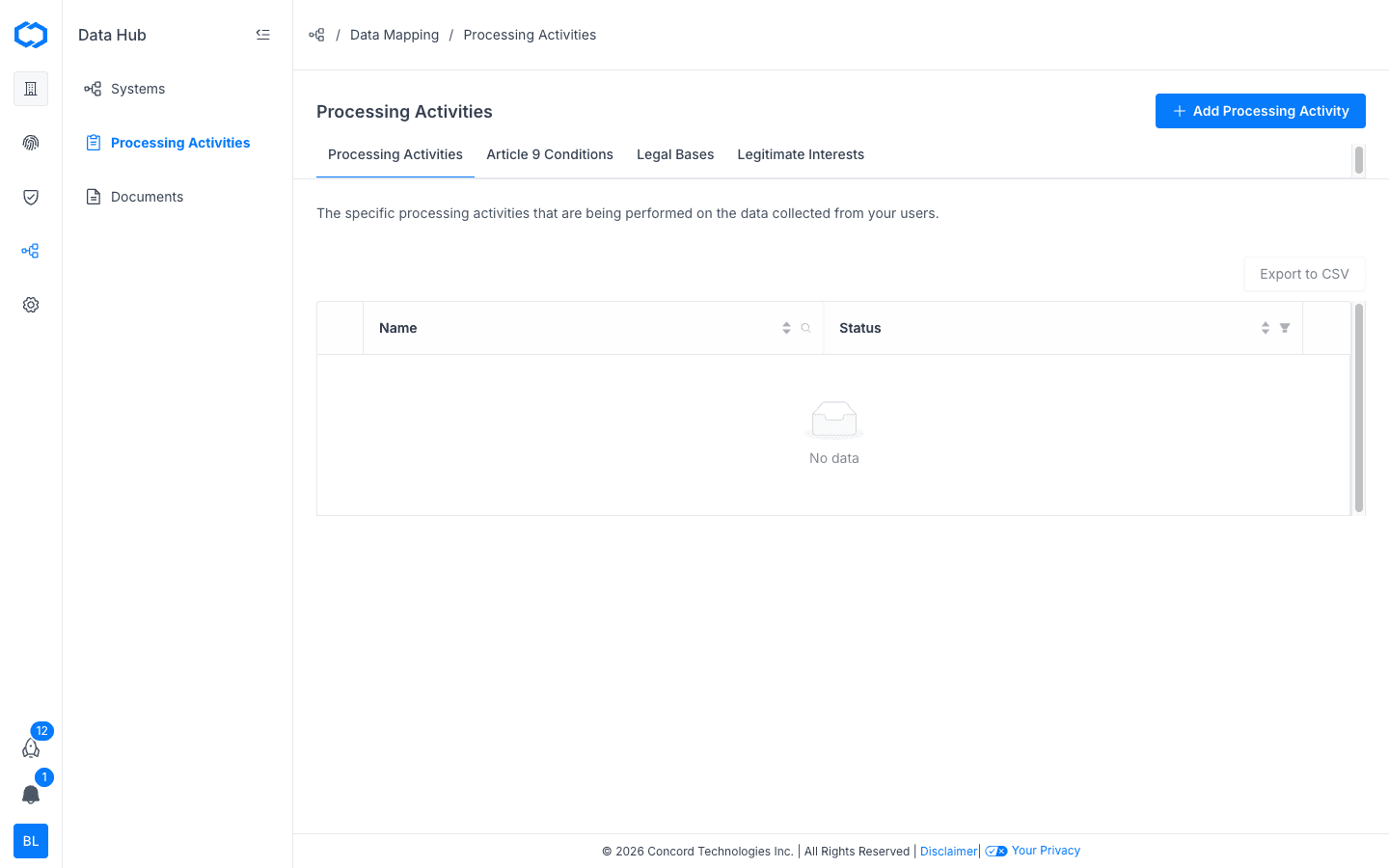
The Processing Activities table shows all activities in your organization with the following columns:
| Column | Description |
|---|---|
| Name | The name of the processing activity. |
| Status | Active or Test. Active activities are included in your ROPA. |
Use the tab bar to switch between the main list and related configuration pages:
- Processing Activities: The main list of all processing activities.
- Article 9 Conditions: Special category processing conditions under GDPR Article 9.
- Legal Bases: The legal bases that apply to your data processing (e.g., consent, legitimate interest, contractual necessity).
- Legitimate Interests: Documented legitimate interest assessments.
Adding a Processing Activity
-
Go to Data Hub > Processing Activities.
-
Click Add Processing Activity in the upper right corner.
-
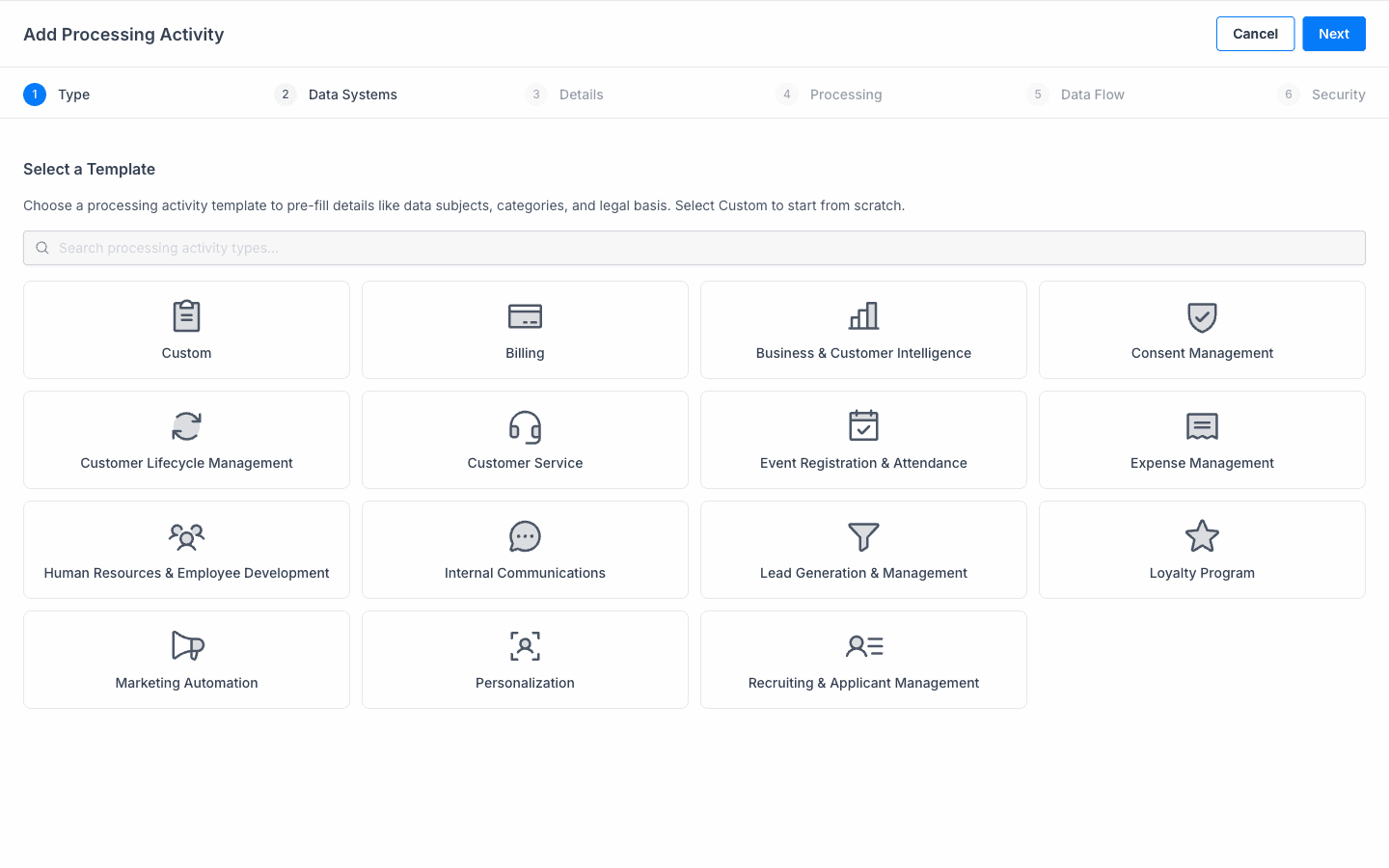
Select a template. Choose a pre-built template to pre-fill details like data subjects, categories, and legal basis. Select Custom to start from scratch. Available templates include:
- Billing
- Business & Customer Intelligence
- Consent Management
- Customer Lifecycle Management
- Customer Service
- Event Registration & Attendance
- Expense Management
- Human Resources & Employee Development
- Internal Communications
- Lead Generation & Management
- Loyalty Program
- Marketing Automation
- Personalization
- Recruiting & Applicant Management
-
Click Next and select the Data Systems associated with this processing activity. You can select any systems already added to your organization in the Data Hub.
-
Click Next and fill in the Details:
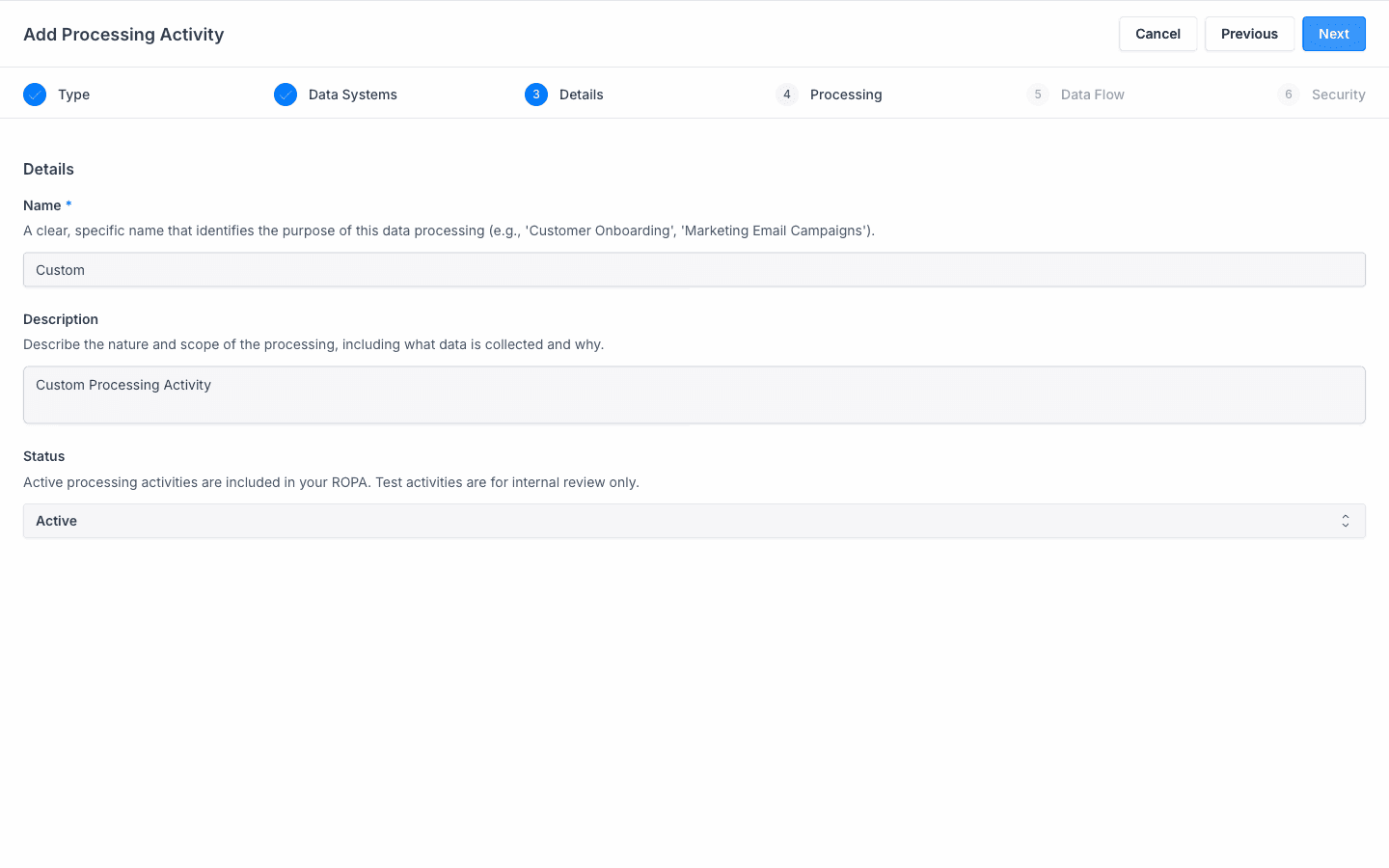
- Name (required): A clear, specific name that identifies the purpose of the processing.
- Description: The nature and scope of the processing, including what data is collected and why.
- Status: Set to Active (included in your ROPA) or Test (for internal review only).
-
Click Next and configure Processing attributes:
- Data Categories: The types of personal data processed in this activity.
- Data Subjects: The types of individuals whose data is processed.
- Processing Purposes: The purposes for processing the data.
- Legal Basis: The legal justification for processing (e.g., consent, legitimate interest, contractual necessity).
- Article 9 Conditions: If special category data is processed, the applicable Article 9 condition.
-
Click Next and configure Data Flow attributes:
- Data Origins: Where the data originates from.
- Data Destinations: Where the data is sent to and who it is shared with.
- Data Retention Period: How long data is retained for this activity.
- Cross-Border Transfer: Whether data is transferred across international borders.
-
Click Next and configure Security measures, then click Done:
- Security Measures: The security measures in place for this processing activity.
The processing activity appears in the table immediately.
Editing a Processing Activity
- Go to Data Hub > Processing Activities.
- Click the name of the activity you want to edit, or click the Actions menu (three dots) and select Edit.
- Update the fields as needed and click Save.
Deleting a Processing Activity
- Go to Data Hub > Processing Activities.
- Click the Actions menu (three dots) for the activity you want to remove.
- Select Delete and confirm.
Managing Article 9 Conditions, Legal Bases, and Legitimate Interests
Use the tabs on the Processing Activities page to manage the configuration options used across your processing activities:
- Article 9 Conditions: Add, edit, or delete the special category conditions available when configuring processing activities that involve sensitive data (e.g., health, biometrics, political opinions).
- Legal Bases: Add, edit, or delete the legal basis options used to justify processing. Predefined options include Consent, Legitimate Interest, Contractual Necessity, Legal Obligation, Vital Interest, and Public Interest.
- Legitimate Interests: Document legitimate interest assessments that support your use of legitimate interest as a legal basis.