Data Hub: Documents
How to add and manage documents in the Data Hub, including statements, FAQs, links, reports, and policies.
Overview
The Data Hub > Documents page is a shared global library where you manage compliance-related documents for your organization. Documents you add here, including statements, FAQs, reports, policies, and links, can be featured on your Concord Trust Center for prospects, customers, and partners to review.
Document Types
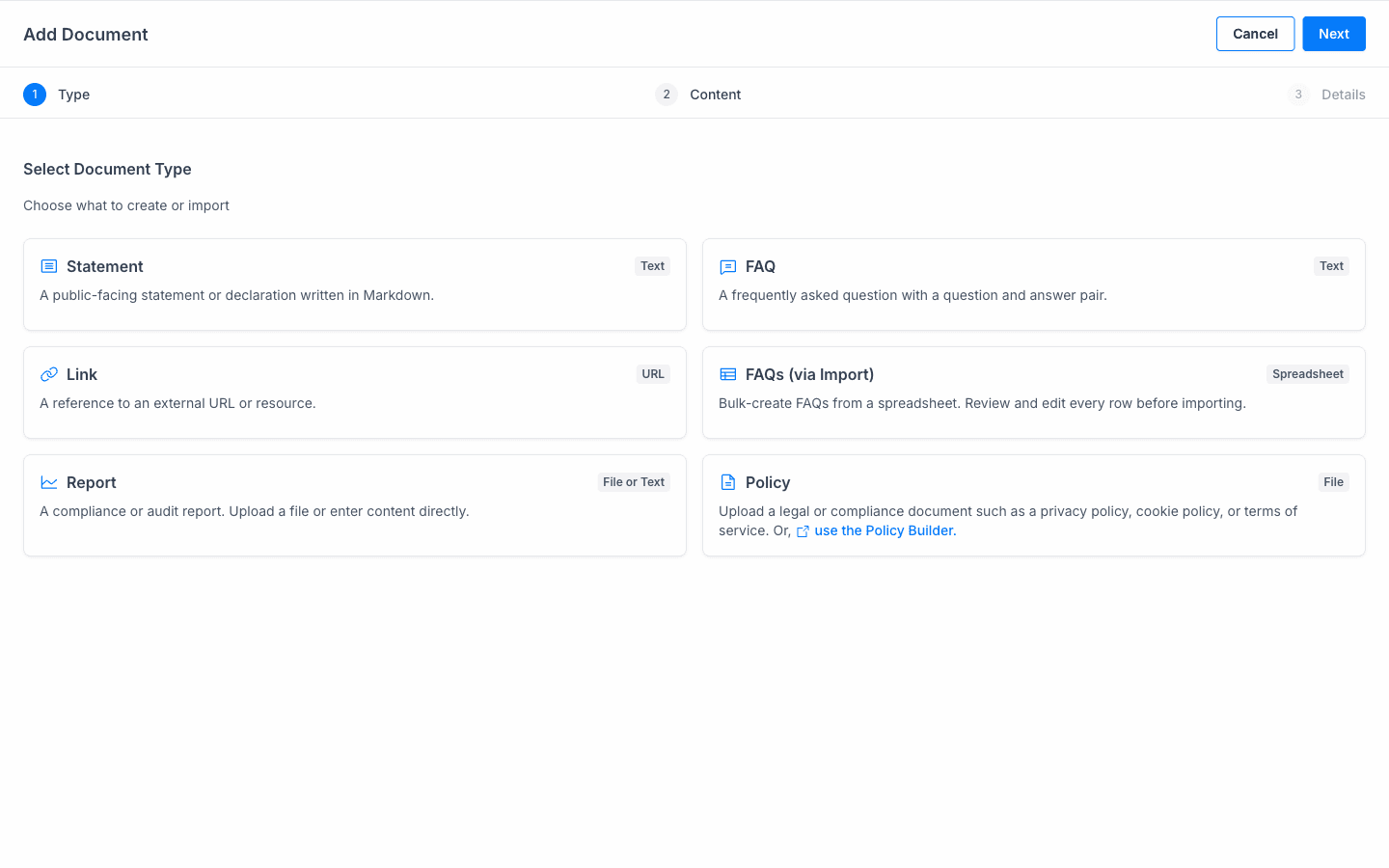
When you add a document, you first select a document type. Each type has a different content format:
| Type | Format | Description |
|---|---|---|
| Statement | Text | A public-facing statement or declaration written in Markdown. |
| FAQ | Text | A frequently asked question with a question and answer pair. |
| Link | URL | A reference to an external URL or resource. |
| FAQs (via Import) | Spreadsheet | Bulk-create FAQs from a spreadsheet. Review and edit every row before importing. |
| Report | File or Text | A compliance or audit report. Upload a file or enter content directly. |
| Policy | File | A legal or compliance document such as a privacy policy, cookie policy, or terms of service. You can also use the Policy Builder. |
Adding a Document
The Add Document flow is a three-step wizard: Type, Content, Details.
Step 1: Select Document Type
- In the Concord Admin UI, go to Data Hub > Documents.
- Click Add Document.
- Select the document type that matches what you want to add.
- Click Next.
Step 2: Add Content
The content step varies by document type:
- Statement: Write your statement content in Markdown.
- FAQ: Enter the question and answer.
- Link: Enter the external URL.
- FAQs (via Import): Upload a spreadsheet file. Review and edit each row before importing.
- Report: Upload a file or enter the report content directly as text.
- Policy: Upload a policy file, or use the Policy Builder to create one.
Click Next when your content is ready.
Step 3: Configure Details
Configure the document metadata:
- Name: A display name for the document.
- Description: A description of the document.
- Category: The category the document belongs to.
- Access Level: Controls who can see this document when it is featured on your Trust Center.
Click Save. The document is now in your global document library.
Featuring Documents on Your Trust Center
Adding a document to the Data Hub makes it available in your global library. To display it on your Trust Center for customers and prospects:
- Go to Trust > Trust Center.
- Select which documents from your global library to feature.
- Featured documents appear on your Trust Center according to their access level setting.
This two-step approach (add globally, then feature selectively) lets you maintain a complete document library while controlling exactly what external visitors see.
Viewing and Filtering Documents
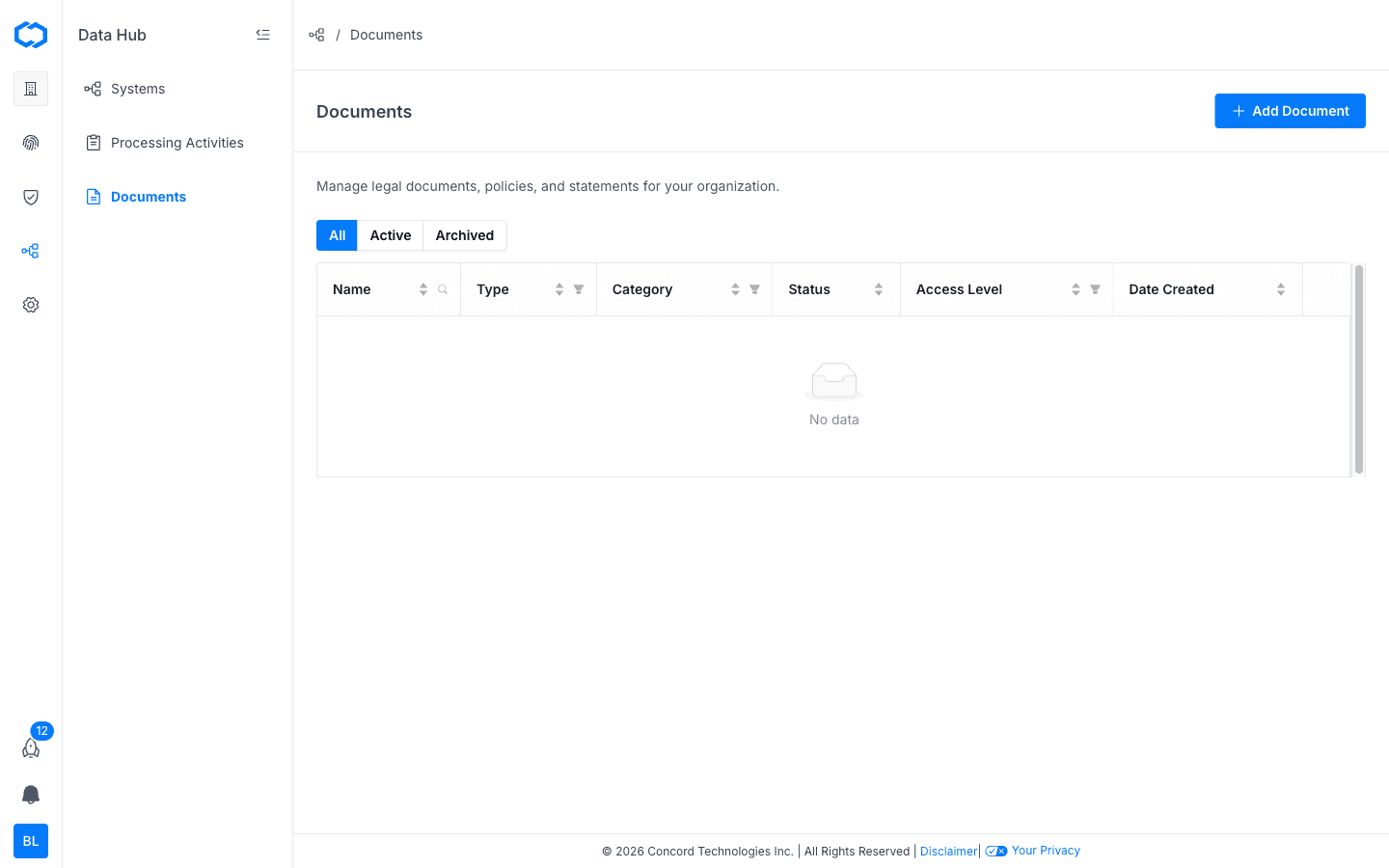
The Documents table in Data Hub > Documents shows all documents in your library with the following columns:
- Name: The document name.
- Type: The document type (Statement, FAQ, Link, Report, or Policy).
- Category: The document category.
- Status: Active or Archived.
- Access Level: Who can access the document.
- Date Created: When the document was added.
Use the All, Active, and Archived tabs to filter by status. You can also sort and filter individual columns.
Live Policy Sync
If you use Concord Privacy for policy management, your policies can be displayed on your Trust Center automatically through the shared Data Hub. When you update a policy in Concord Privacy (such as your Privacy Policy or Cookie Policy), the Trust Center reflects the current version without any manual re-upload.
Synced policies appear alongside your other documents in the Trust Center. This means your visitors always see the latest version.
Editing a Document
- Go to Data Hub > Documents.
- Click on the document you want to edit.
- Update the details as needed.
- Click Save.
Deleting a Document
- Go to Data Hub > Documents.
- Click on the document you want to delete.
- Click Delete.
Deleting a document removes it from your global library and from your Trust Center if it was featured.