Billing Overview
How to view and manage your Concord subscription, payment methods, and invoices.
Overview
The Billing section in Concord lets you manage your subscription, update payment information, and access invoices. All billing settings are available to account administrators.
Navigate to Global Settings → Billing to access your billing dashboard.
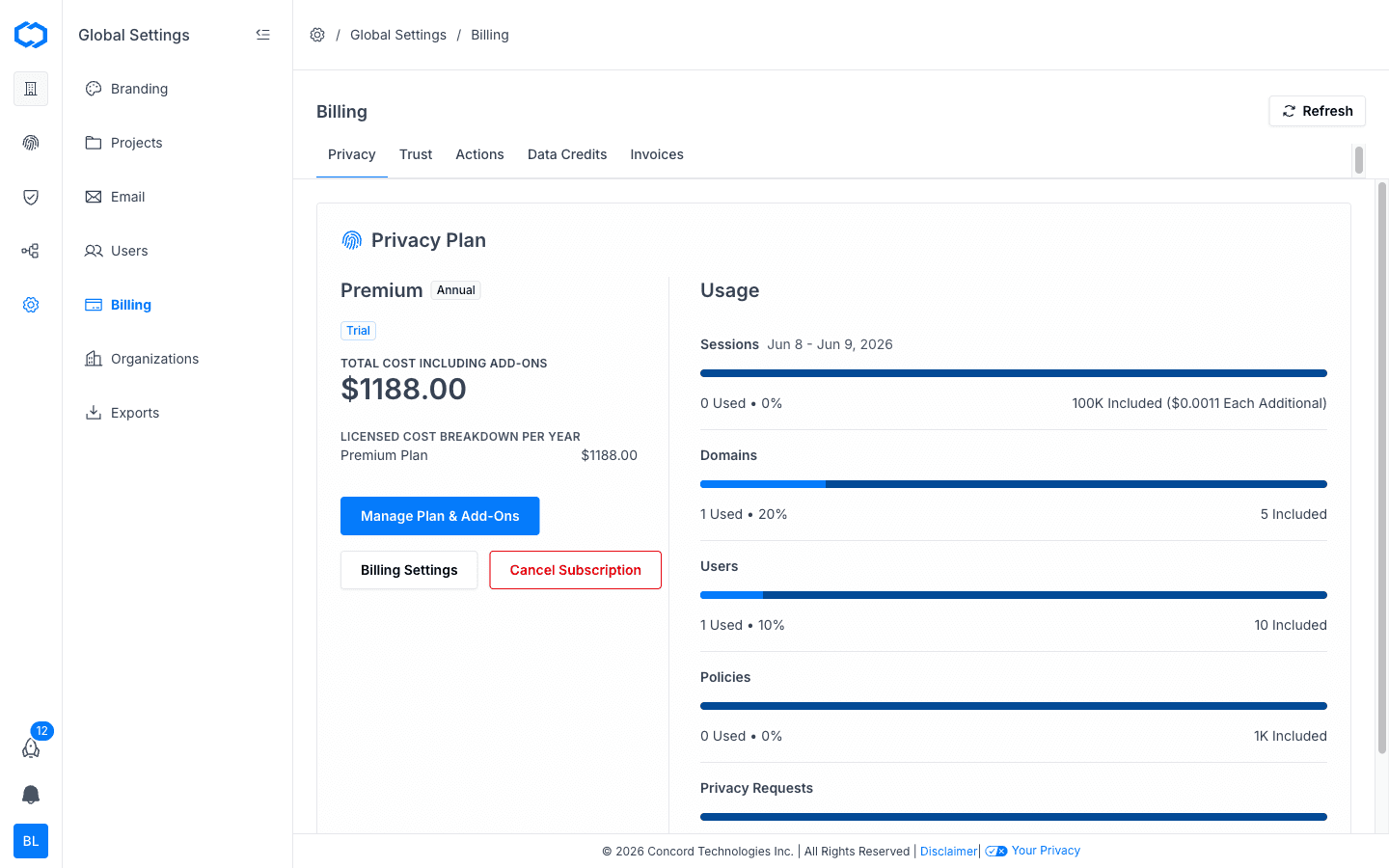
Billing Tabs
The Billing page is organized into five tabs:
- Privacy: your Concord Privacy plan, usage (sessions, domains, users, policies, privacy requests), and subscription management.
- Trust: your Concord Trust plan and subscription management. Premium and Enterprise Trust plans can also add framework packs here for compliance frameworks (see Adopting frameworks).
- Actions: your organization's Actions pool. Actions are included with your plan and cover orchestration and in-house processing for advanced features. See Actions and Data Credits below.
- Data Credits: your pre-paid Data Credits balance. Data Credits cover AI inference (LLM passthrough) and third-party data source costs. See Actions and Data Credits.
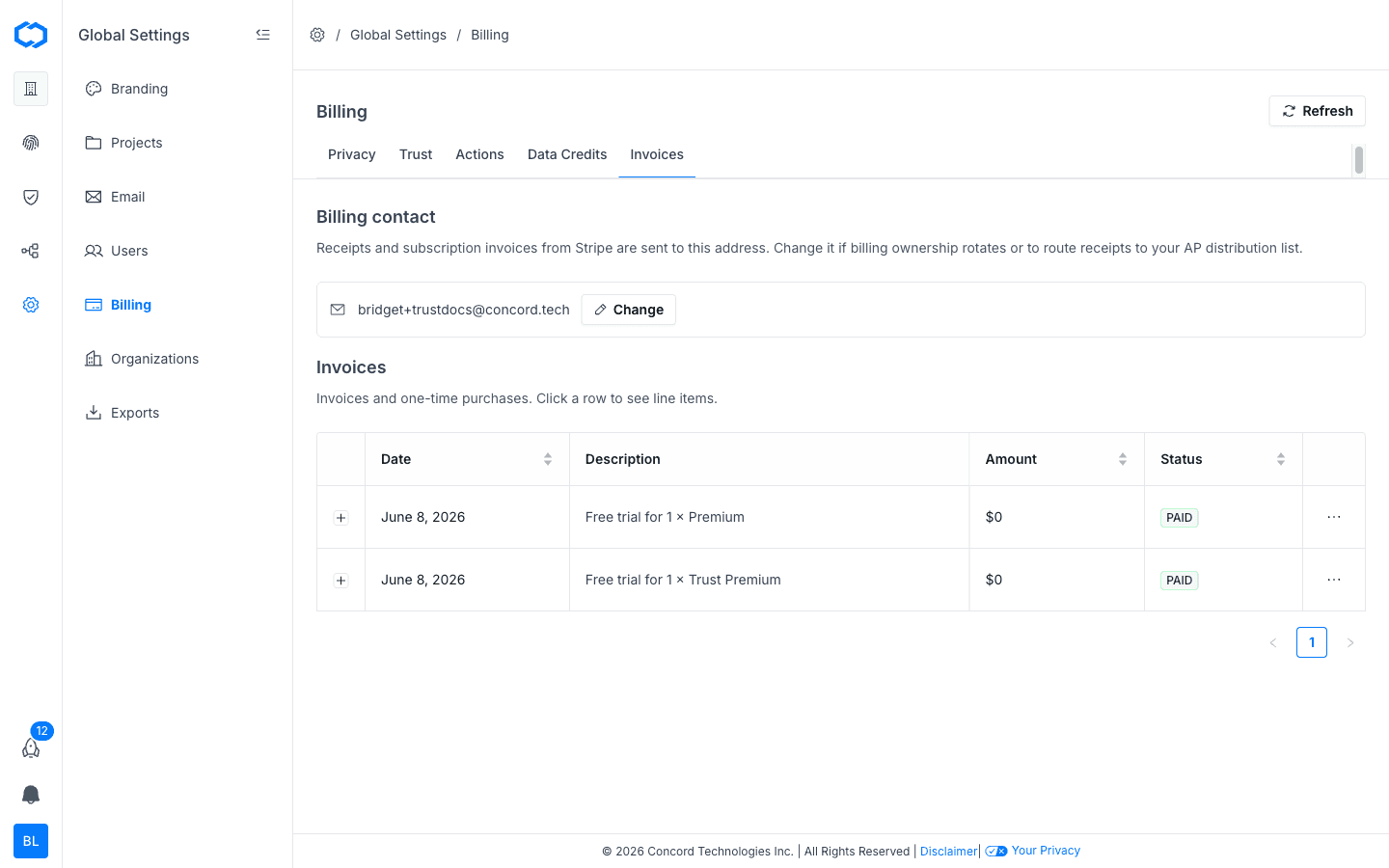
- Invoices: past invoices available for download as PDFs.
Actions and Data Credits
Concord uses two separate consumption pools for advanced features:
Actions are included with your plan and reset at the end of each billing cycle. They cover orchestration and in-house processing. Every plan includes an allocation of Actions, and you can purchase additional Actions as a recurring add-on.
Data Credits are a separate pre-paid pool that covers costs passed through from third-party services, primarily AI/LLM inference. Data Credits are not included in your plan. You purchase them as one-time packs, and they expire 12 months after purchase. You can also enable auto-purchase to automatically buy credits when your balance hits zero.
Advanced workflows consume both. For example, generating AI draft responses for a questionnaire or RFP uses Actions for orchestration and Data Credits for the underlying AI inference. The same applies to AI chat on your Trust Center, document indexing in the Knowledge Base, and other AI-powered features.
For details on managing Data Credits, see Actions and Data Credits.
Viewing Your Current Plan
Your billing dashboard displays your current plan, including:
- Plan name and billing cycle (monthly or annual)
- Current usage relative to your plan limits
Changing Your Plan
To upgrade or downgrade your plan:
- Navigate to Global Settings → Billing.
- Click Manage Plan & Add-Ons.
- Select the plan that fits your needs.
- Confirm the change.
Plan upgrades take effect immediately. Downgrades take effect at the end of your current billing cycle. If you have questions about which plan is right for your organization, contact support@concord.tech.
Managing Payment Methods
To update your payment method:
- Navigate to Global Settings → Billing.
- Under one of your licensed products, click Billing Settings.
- Enter your new card details and save.
Accessing Invoices
Past invoices are available in the Billing section. Click the Invoices tab to view and download invoices as PDFs. Each invoice includes the billing period, charges, and payment status.